SchoolOps by ChalkChest · For every teacher and staff member
Getting started on the phone app
Sign in on your phone, allow alerts, and find your timetable and your alerts.
The pictures and clips show the real product with a made-up school, staff and classes. Fictional demo data.
On the phone
Your school tells you how to get the SchoolOps app and gives you three things: the school’s address, your sign-in address and a one-time password.
Signing in for the first time
Open the app. If it asks for the Server address, type the address your school gave you and tap Connect.
Type your Sign-in address and the one-time Password, then tap Sign in.
The app asks you to Choose a new password. Type the one-time password once, then your own new password twice, and tap Save and continue. A password needs 8 or more characters, with a letter and a number.
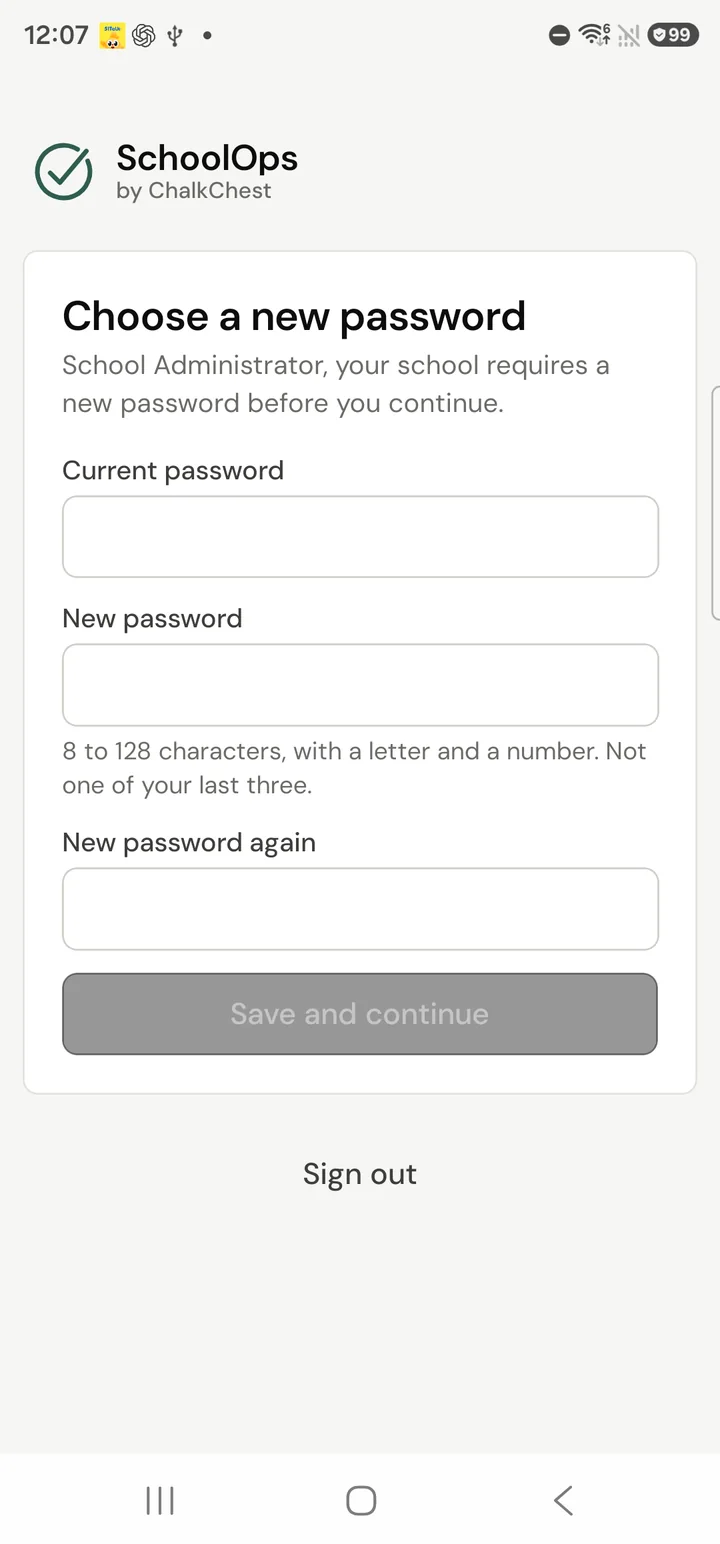
The Choose a new password screen, with boxes for the current password and the new password twiceFictional demo data When the phone asks whether SchoolOps may send notifications, allow it. This is how you hear about relief duties, room changes and leave decisions straight away.
Staying signed in
The app stays signed in. It asks for your password again only if you sign out, change your password somewhere else, or an administrator signs you out.
If you have been away from the app for five minutes or more, it asks for your fingerprint, your face or the phone’s own passcode before it opens.
Every 90 days you are asked to choose a new password.
Your timetable
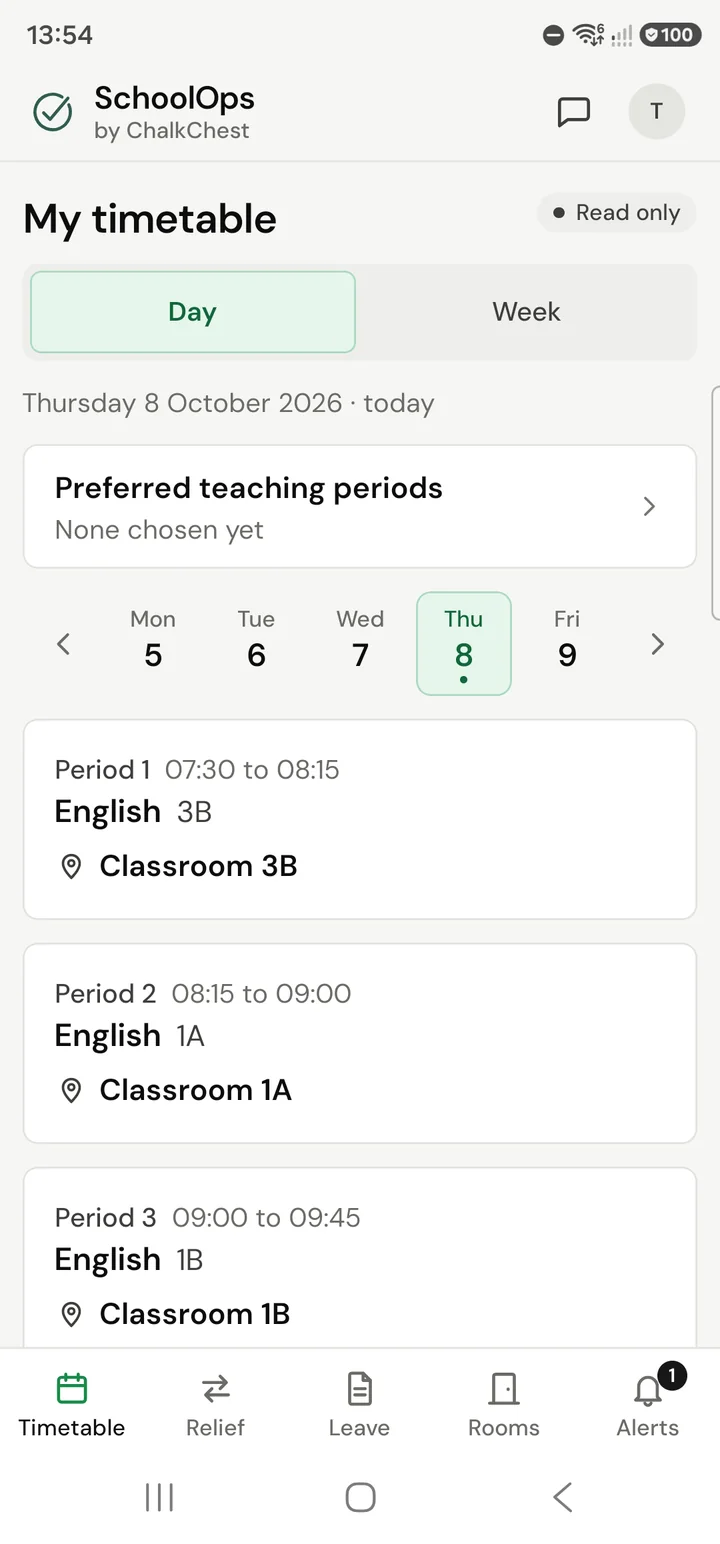
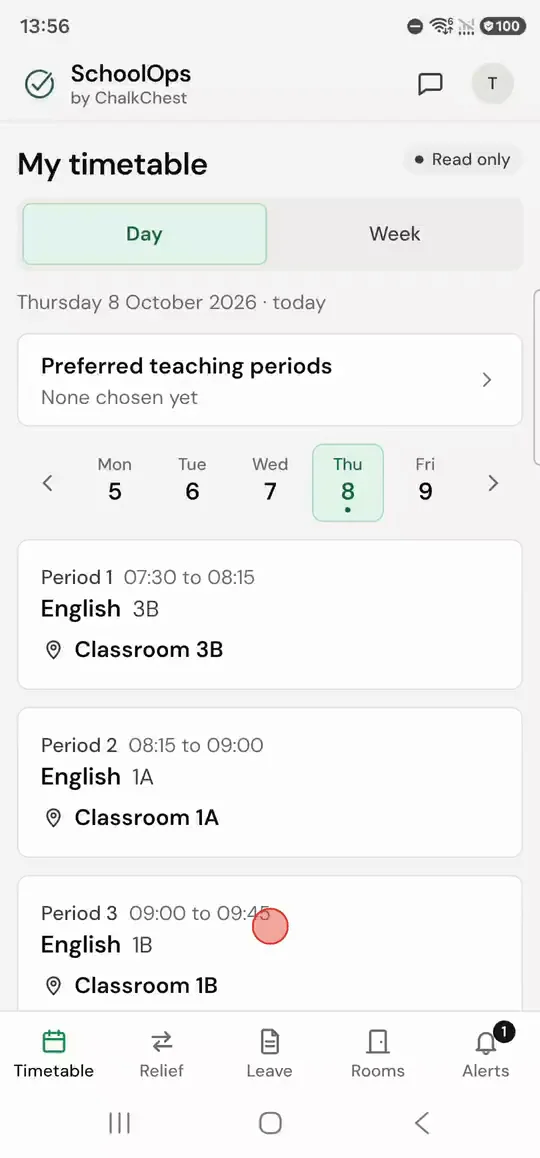
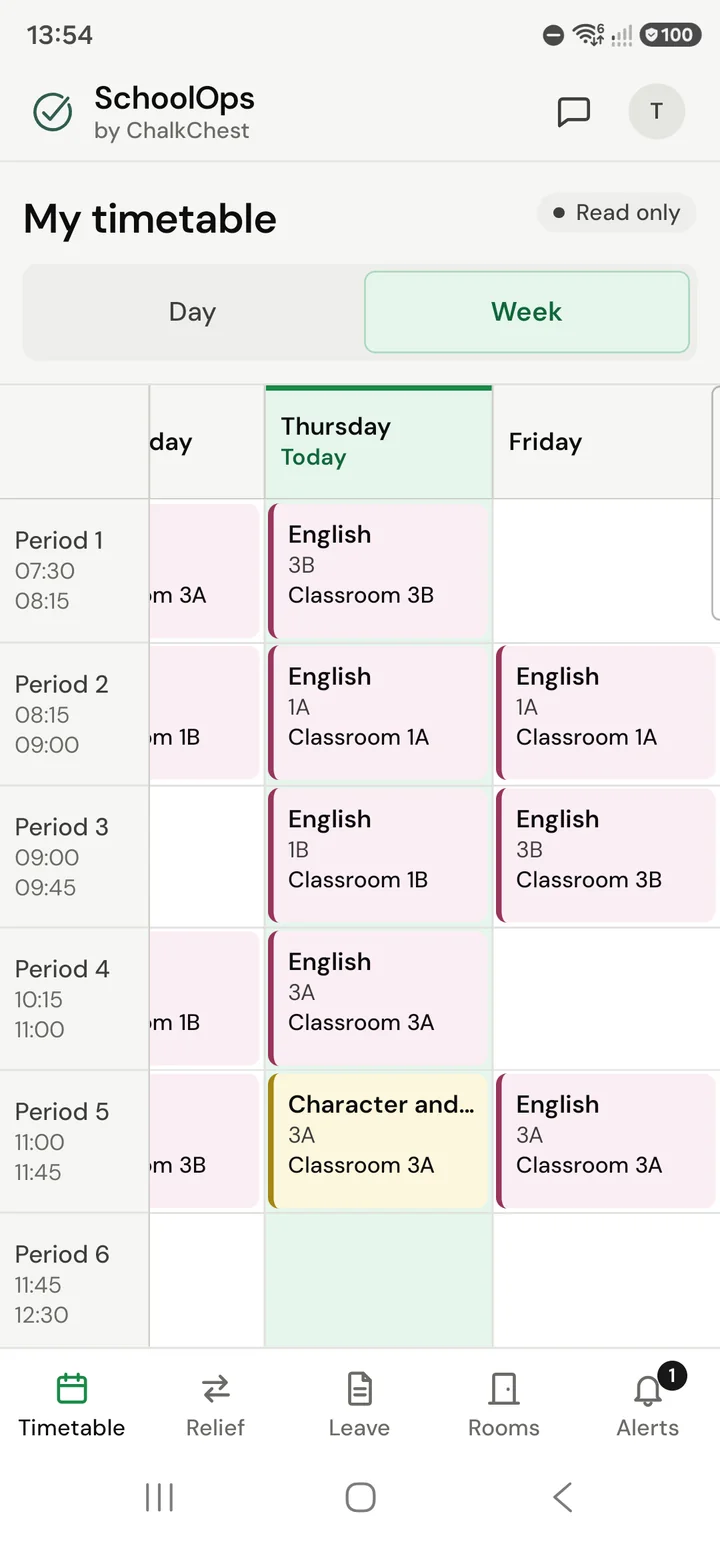
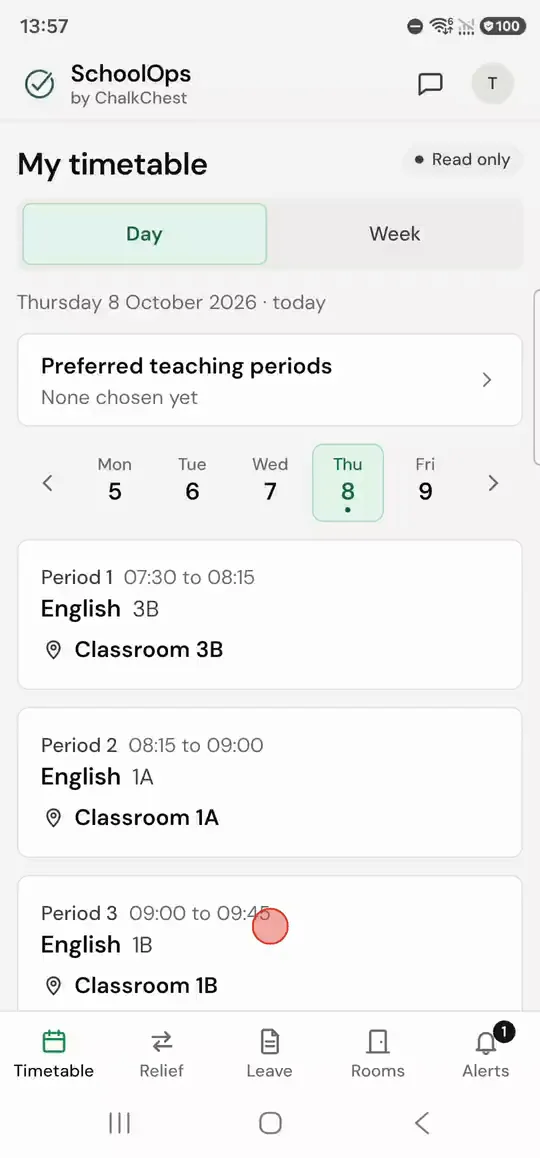
Timetable is the first tab. It shows your own lessons for the day, each with its period, time, class, subject and room. Tap another day along the top to see that day. Tap Week to see the whole week as a grid, and Day to come back.
Your timetable is marked Read only. Nothing you tap here can change it.
Your alerts
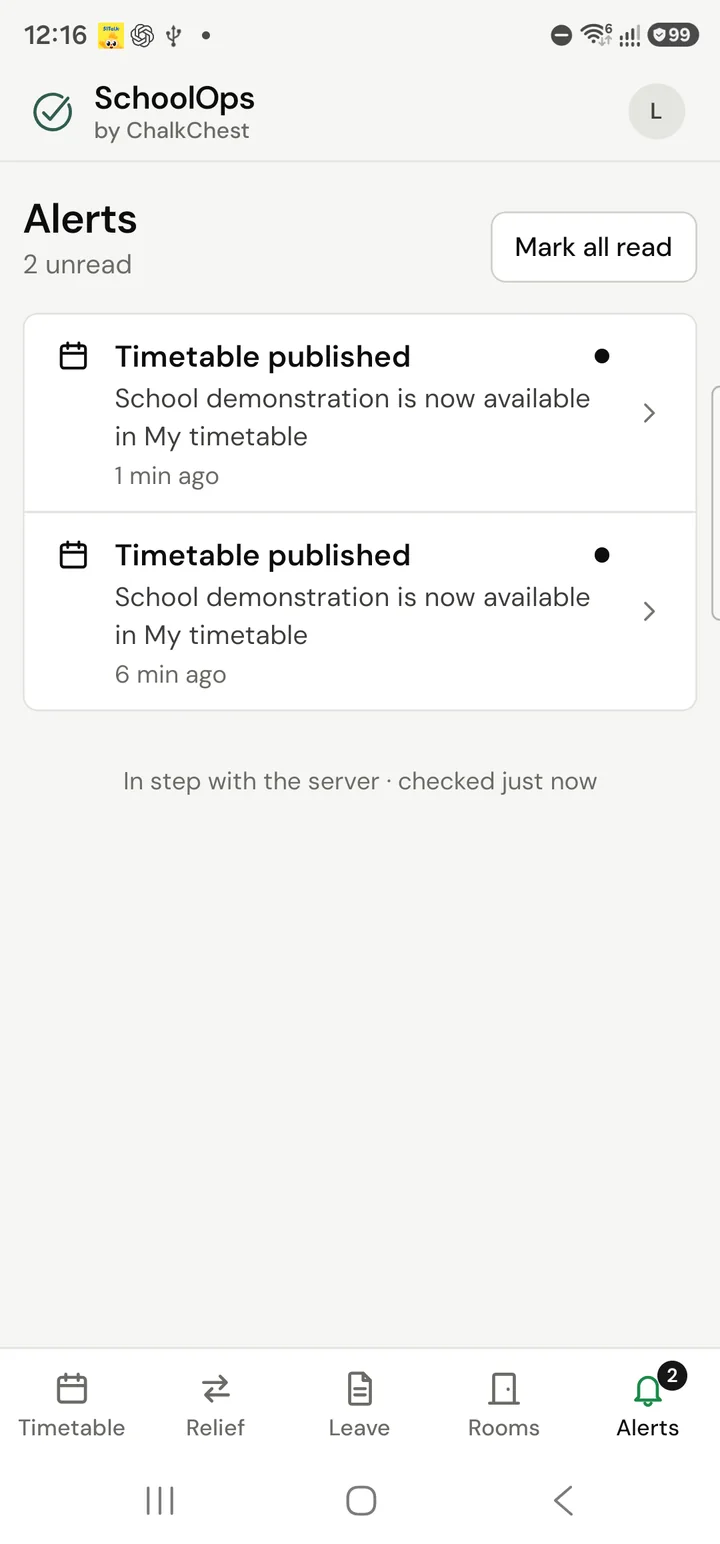
Alerts is the last tab. The number on the bell is how many you have not read. You are told when a timetable is published, when relief is given to you or taken back, when a handover is added or changed, when a room changes, and when your leave is approved, rejected or cancelled.
Tap an alert to open the thing it is about. Mark all read clears the number.
More than one account
Tap the round button with your initial at the top right to open Account. There you can Add another account, switch between accounts and Sign out.