SchoolOps by ChalkChest · For every teacher and staff member
Reporting an absence
Tell the school you will be away, from your phone or the web, and follow the request until it is approved.
The pictures and clips show the real product with a made-up school, staff and classes. Fictional demo data.
On the phone
Tap the Leave tab, then Submit absence.
Choose the reason from your school’s list.
Choose the first and last day you will be away.
Leave Full day chosen, or tap only the periods you will miss.
Add a Note for reviewer if you want. Only you and the staff who review leave can read it.
Tap Submit.

A short clip: opening Submit absence, choosing the reason and tapping two periodsFictional demo data 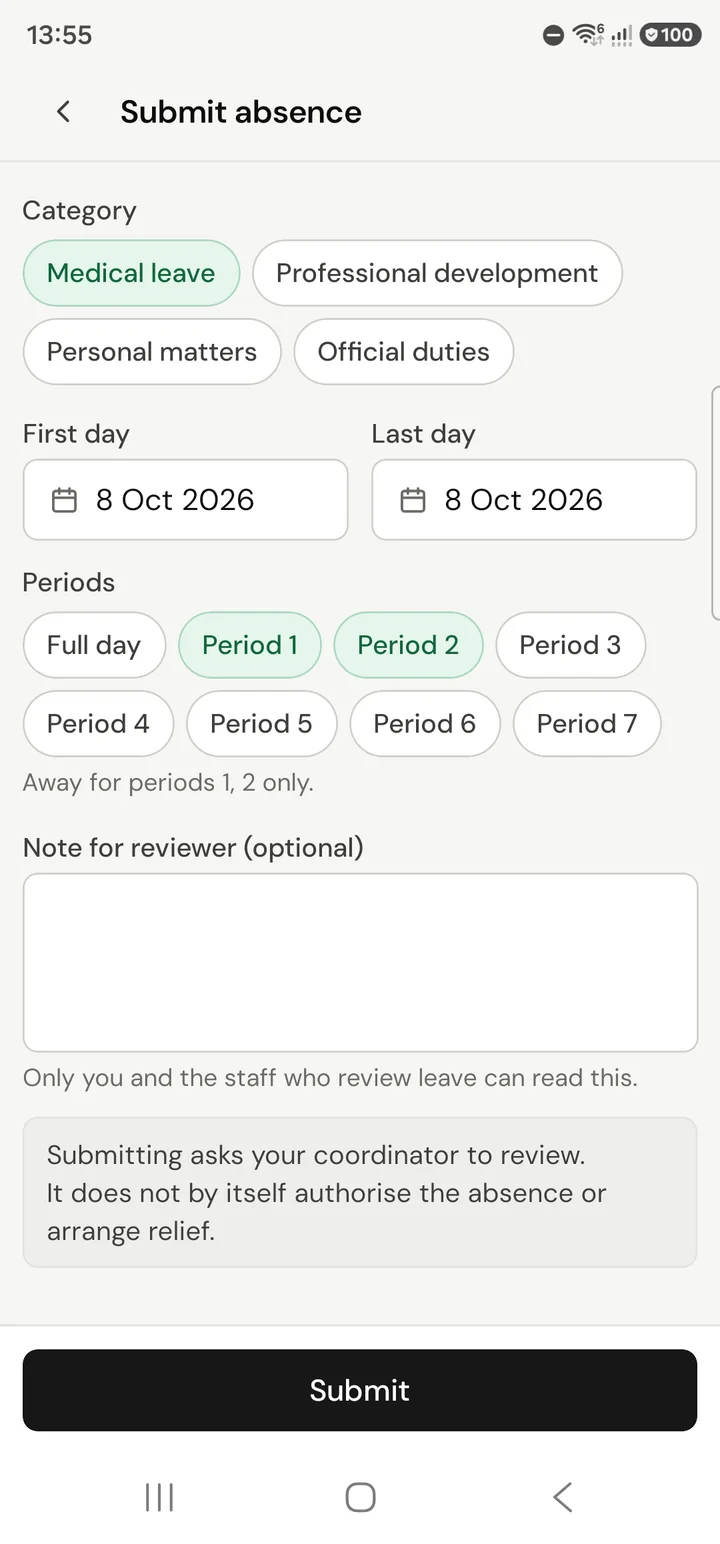
The Submit absence form on the phone, with a reason chosen, the dates, two periods chosen, a note for the reviewer and the Submit buttonFictional demo data
Submitting asks your coordinator to review the request. It does not approve the absence or arrange relief by itself.
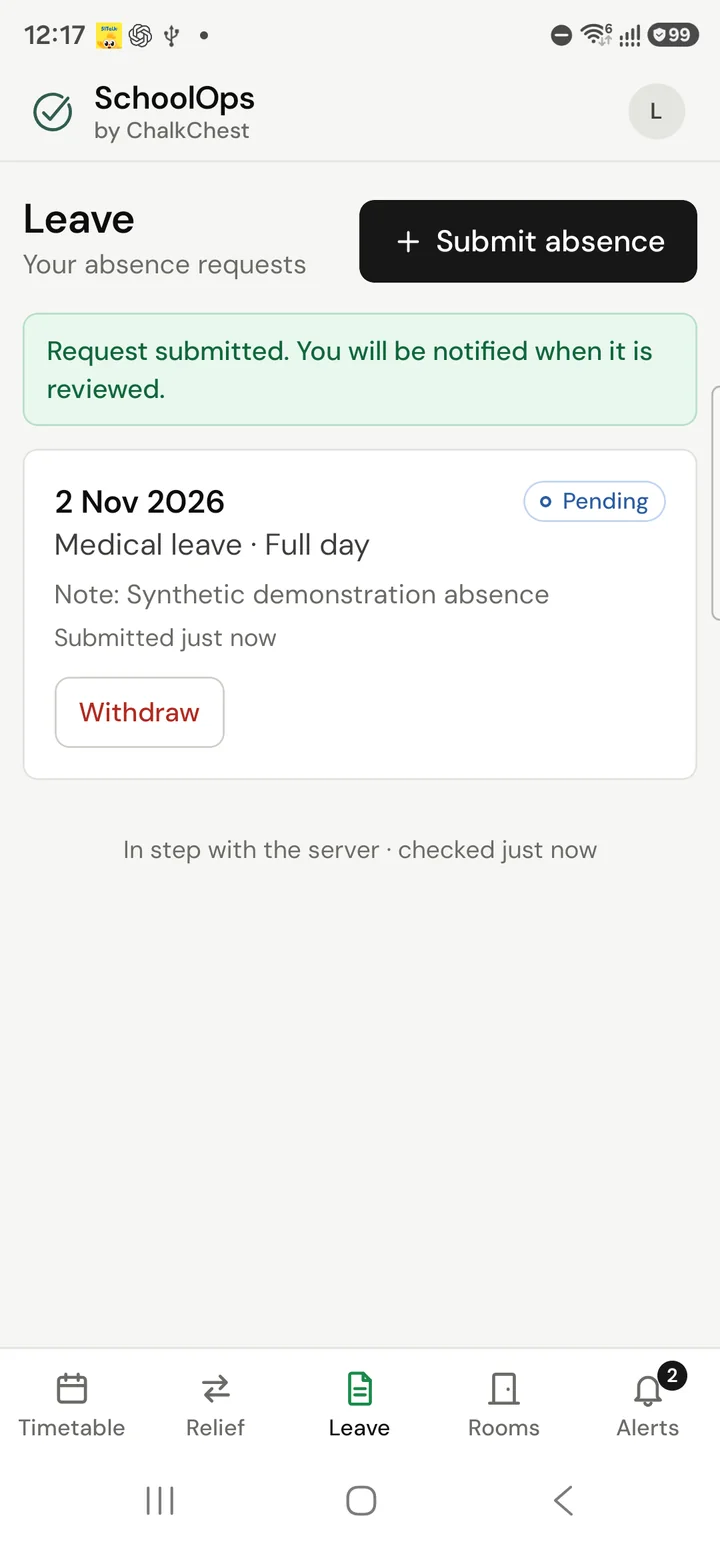
Your request now shows as Pending. You are told when it is reviewed. While it is pending, Withdraw takes it back.
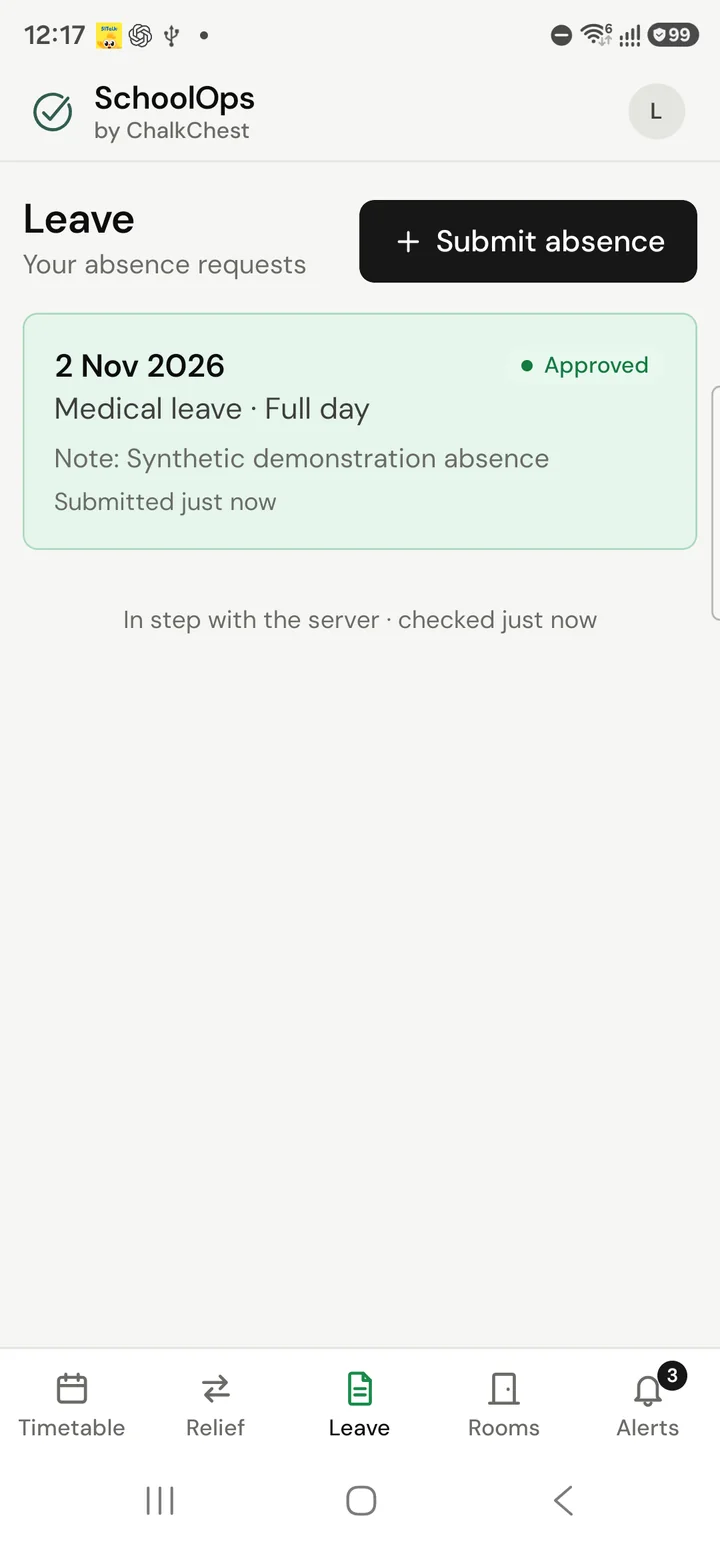
When the coordinator approves it, the request turns green and reads Approved, and you get an alert.
On the web
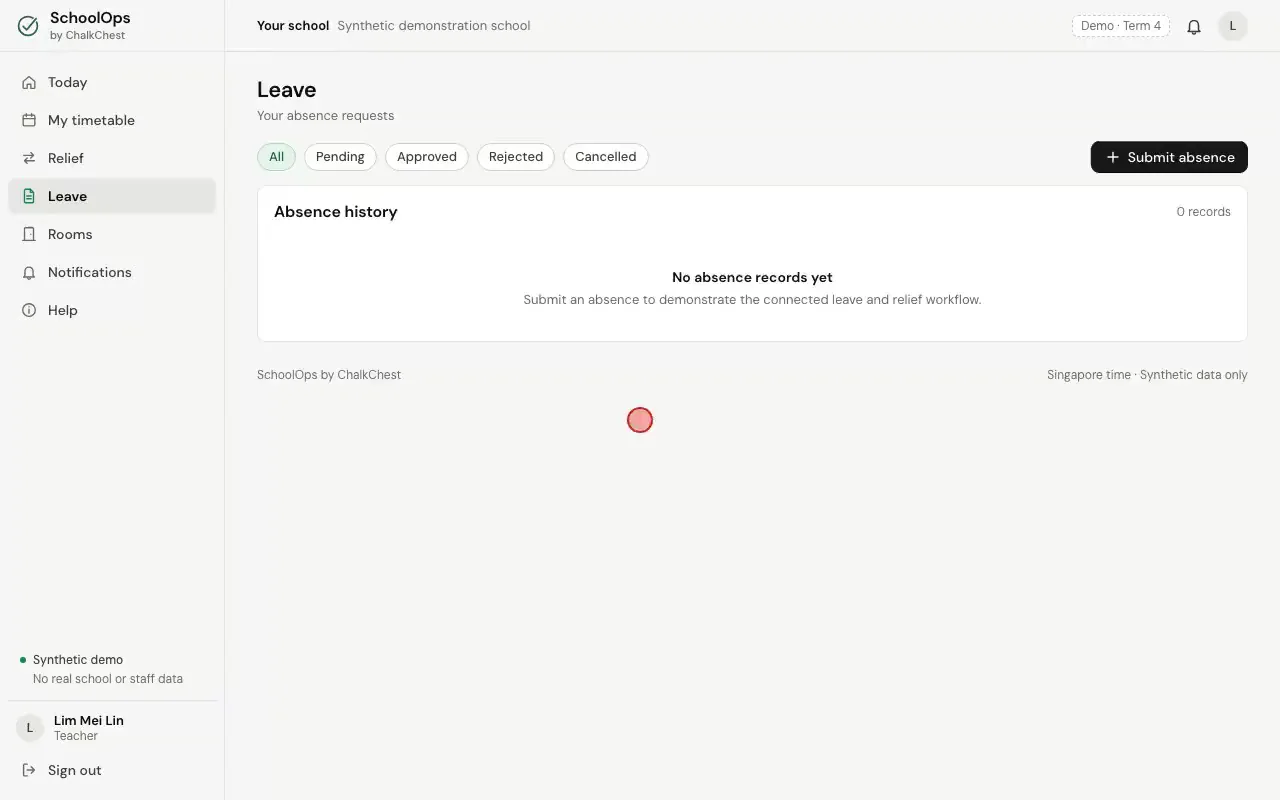
Open Leave from the menu. Your requests are listed under Absence history.
The Leave page, with the Submit absence button at the top rightFictional demo data Choose Submit absence. Pick the Category, set the First day and the Last day, and write a Note for reviewer if it helps. Then choose Submit for approval.
Filling in the Report an absence form and sending it for approvalFictional demo data Your request is now listed as Pending. It stays pending until a coordinator or an administrator approves it. You cannot approve your own.
The request in Absence history, marked PendingFictional demo data Changed your mind before it is approved? Choose Cancel request, type a reason and choose Confirm cancellation. Keep request closes the window and leaves the request as it is.
The Cancel leave request window with a reason typed inFictional demo data Once it is approved, the status changes to Approved and relief planning starts for the lessons you will miss. If your plans change after that, choose Cancel leave. Relief that is no longer needed is released and the people affected are told.
The same request, now marked Approved, with a Cancel leave buttonFictional demo data You are also told on the Notifications page. The bell at the top of every page opens it.
The Notifications page showing Leave approvedFictional demo data