SchoolOps by ChalkChest · For the school’s system administrator
Relief rules
Absence reasons, weekly relief caps, who is left out, who is chosen first, staff groups and alternative rooms.
The pictures and clips show the real product with a made-up school, staff and classes. Fictional demo data.
On the web
Absence reasons and relief types
Open Settings. Absence categories holds the reasons staff choose from when they report an absence, one on each line. Add, change or remove a line, then choose Save categories. A new school can bring in the usual reasons with one button at the first step of Setup, and add its own here.
Relief types works the same way. If your school has more than one type, the coordinator chooses the type when approving relief. Choose Save relief types when you have changed the list.
Settings, with the absence categories and the relief typesFictional demo data
The relief policy
Open School relief policy and staff groups, also on Settings. The numbers say how much weight relief planning gives to each preference: the same department, a teacher who already teaches the class, staff groups, sharing the work fairly and avoiding duties one after another. A higher number has more influence. Who is free and the workload limits always come first.
The relief policy with its preferencesFictional demo data Tick Find a suitable alternative room when the original room is unavailable if you want SchoolOps to look for another room that suits the lesson. It is not ticked when a school starts. Choose Save relief policy after any change.
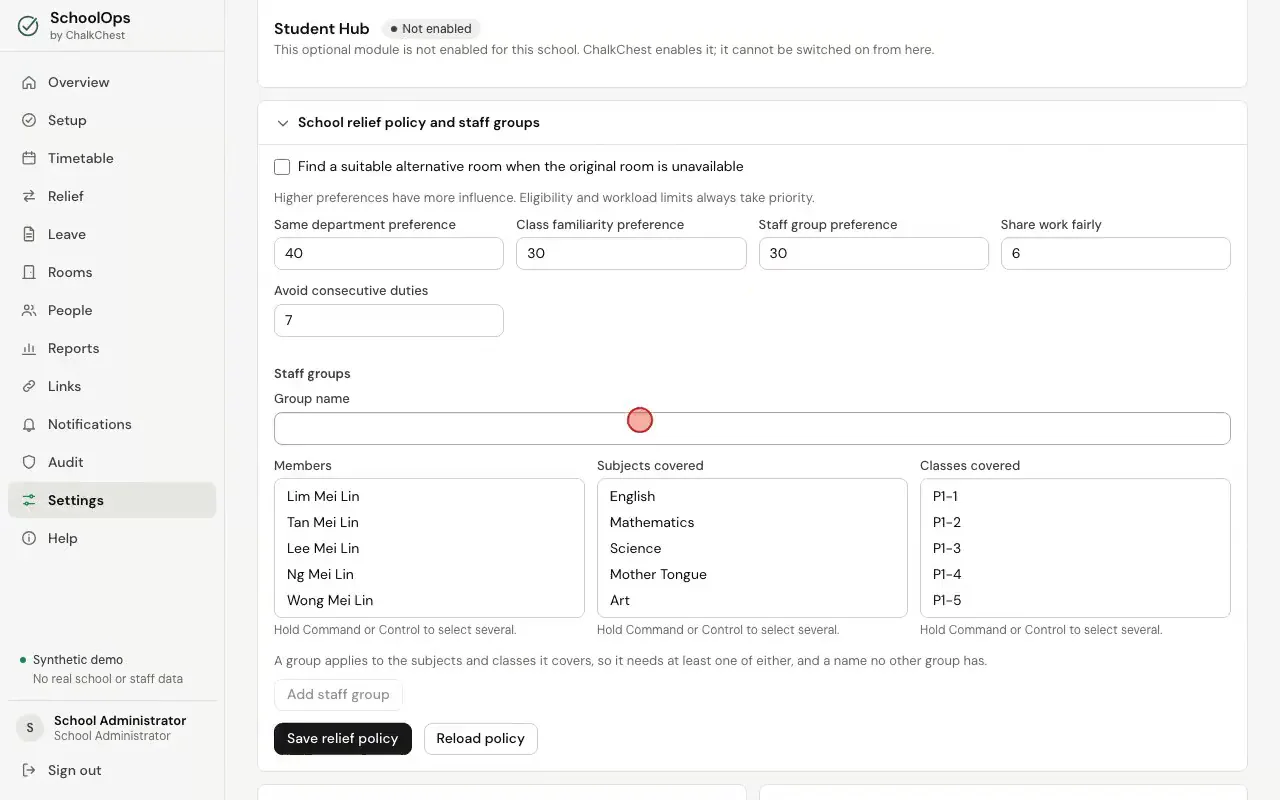
Ticking the alternative room box, changing a preference and saving the policyFictional demo data
Staff groups
A staff group is a set of teachers who should be chosen first for certain subjects or classes. Type a Group name, choose the Members, then the Subjects covered or the Classes covered, or both. Hold Command or Control to choose several.
Making a staff group for three classes and one subjectFictional demo data Choose Add staff group, then Save relief policy. The group is listed under the form, with Remove beside it.
The new staff group listed after savingFictional demo data
Rules for one person
Open People. The staff directory shows each person’s weekly teaching cap, their relief cap and whether they are in the relief pool. Choose Edit rules beside a person.
The staff directory on the People pageFictional demo data Weekly relief cap is the most relief periods that person is given in a week. Set a lower number for a person with a lighter relief load, such as a head of department. Tick Exempt from relief duties to leave the person out of relief altogether.
The rules for one person, with the weekly relief capFictional demo data Open Periods when this person is not available and tick each period the person cannot take a lesson, such as the days a part-time teacher is not in school. Choose Save rules.
Ticking the periods when a person is not availableFictional demo data