SchoolOps by ChalkChest · For the timetable administrator
Changing a timetable by hand
Move a lesson, read the warning when a move would clash, fix a lesson in place and change its room.
The pictures and clips show the real product with a made-up school, staff and classes. Fictional demo data.
On the web
A published timetable cannot be edited. Make your changes in a draft, then publish the draft.
Open Timetable, choose the draft in the list of versions and choose Whole school. Each row is a class, a teacher or a room, and each column is a period.
A draft timetable in the Whole school gridFictional demo data Drag a lesson along its row to another period and let go. The move is checked against the whole timetable and then saved. Undo move puts the lesson back.
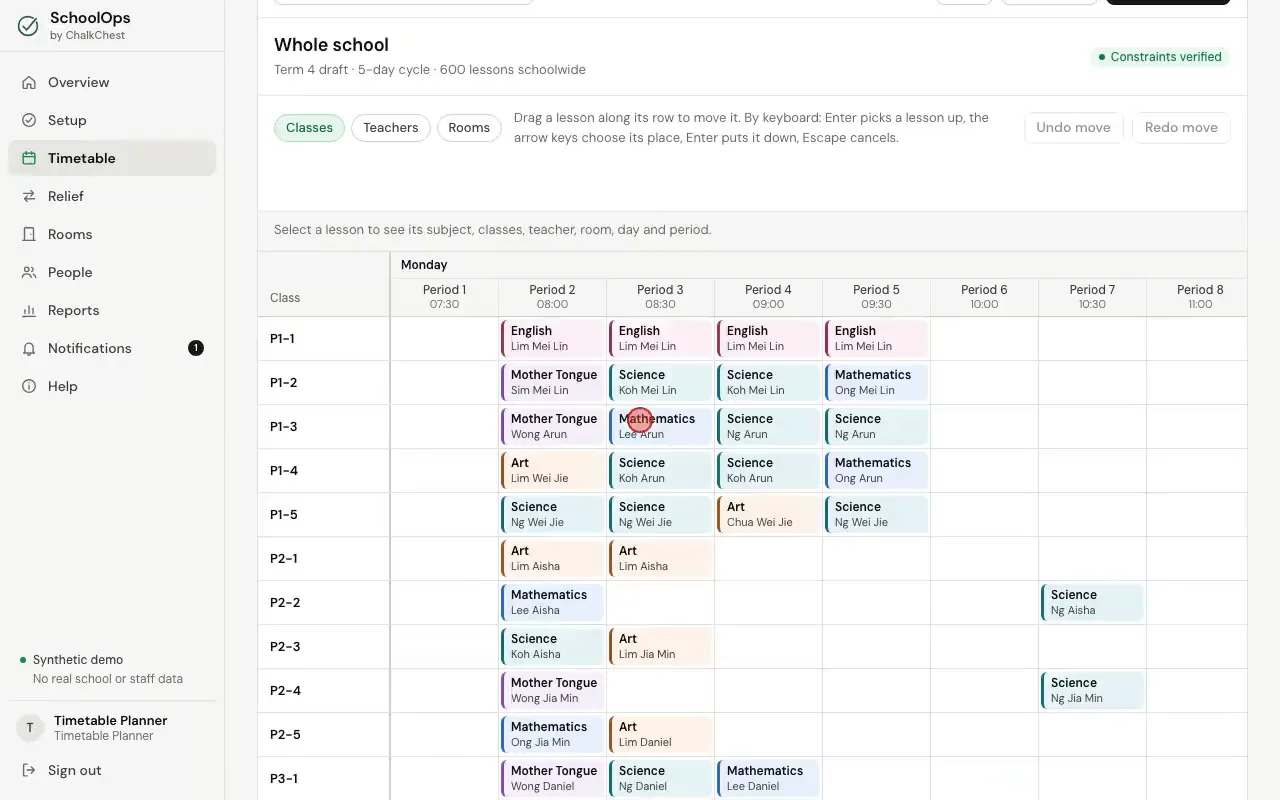
Dragging a lesson to a free period, then undoing the moveFictional demo data If the move would break a rule, the lesson goes back to where it was and you are told why, for example that the teacher is already teaching then or the room is in use.
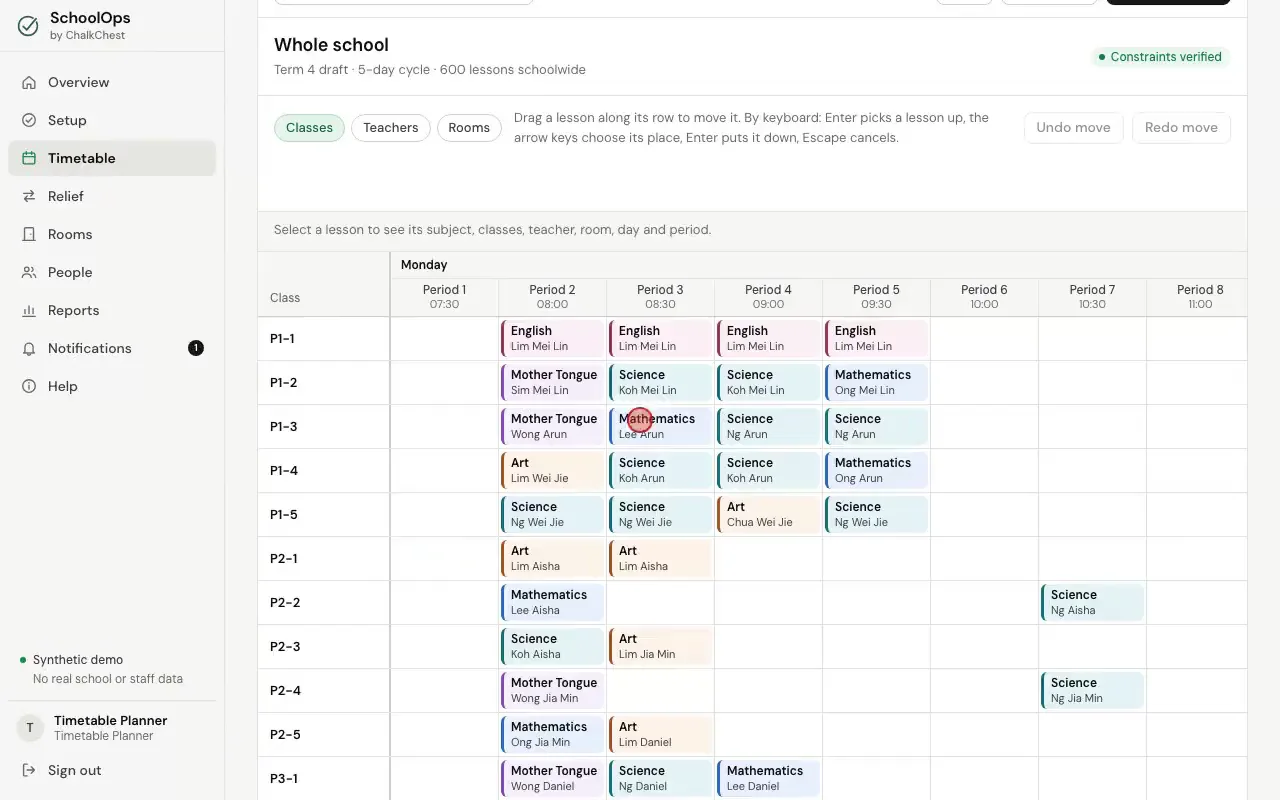
A move that is refused, with the lesson going backFictional demo data The message that says why the move was refusedFictional demo data Edit a draft lesson, under the grid, does the same with boxes. Choose the lesson, then its day, period and room, and choose Validate and save lesson.
Edit a draft lessonFictional demo data Fix lesson in place locks a lesson where it is. Generating again or repairing the timetable leaves a fixed lesson alone. Unfix lesson lets it move again.
A lesson after it has been fixed in placeFictional demo data To fix a lesson before any timetable is made, open Calendar and teaching rules and use Lessons fixed before generating. Choose the lesson, the day, the period it starts in and the room, then choose Fix this lesson and Save calendar and rules. The next timetable keeps the lesson there and places everything else around it.
Choosing a lesson, a day, a period and a room to fix before generatingFictional demo data The lesson listed as fixed before generatingFictional demo data