SchoolOps by ChalkChest · For the relief coordinator
Arranging the day’s relief
Approve leave, check the teachers proposed for each lesson, approve them all or change one by hand, and combine classes when staff are short.
The pictures and clips show the real product with a made-up school, staff and classes. Fictional demo data.
On the phone
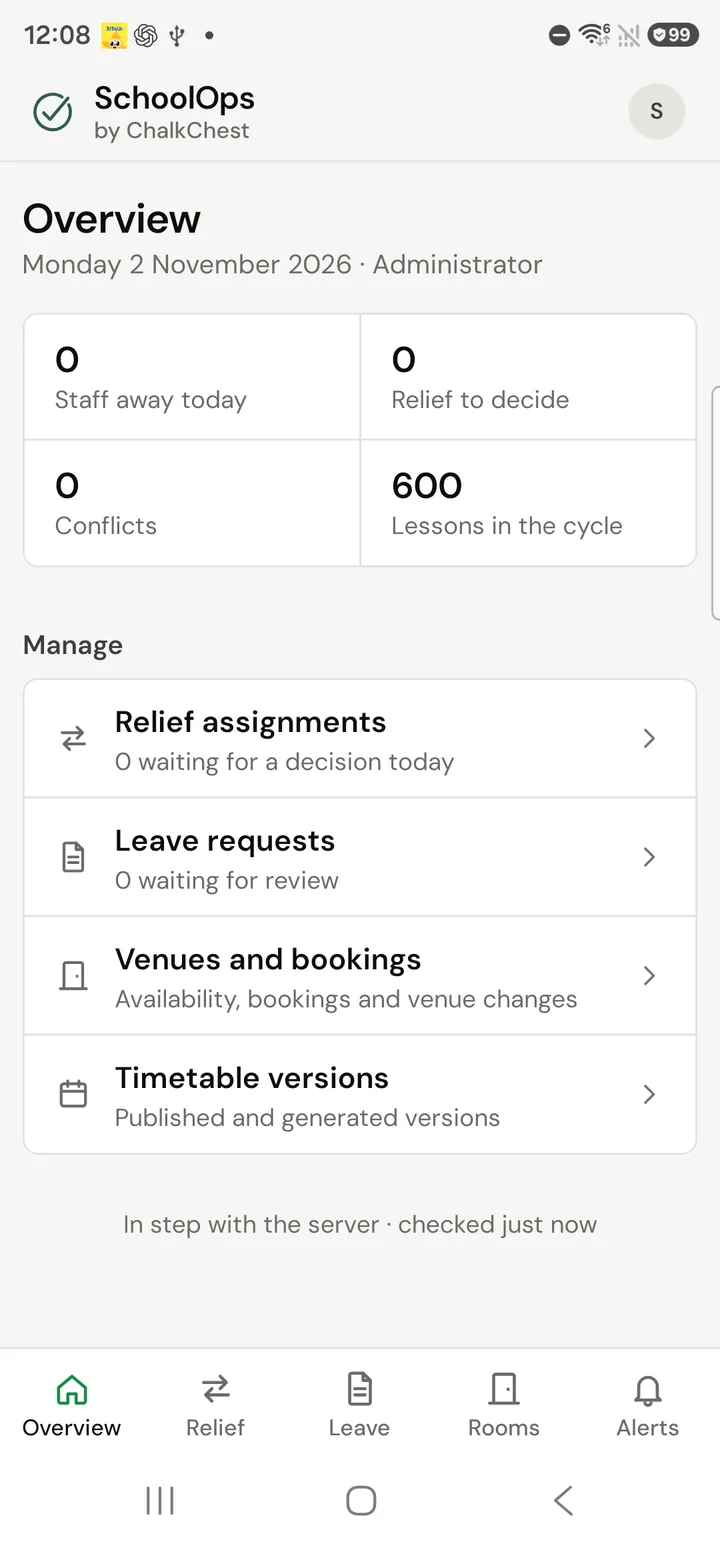
A coordinator or an administrator can do the main steps from the phone. Overview, the first tab, shows the day at a glance: staff away, relief still to decide, and the things you look after.
Tap the Leave tab. Requests waiting for you are under Pending. Tap Approve or Reject.
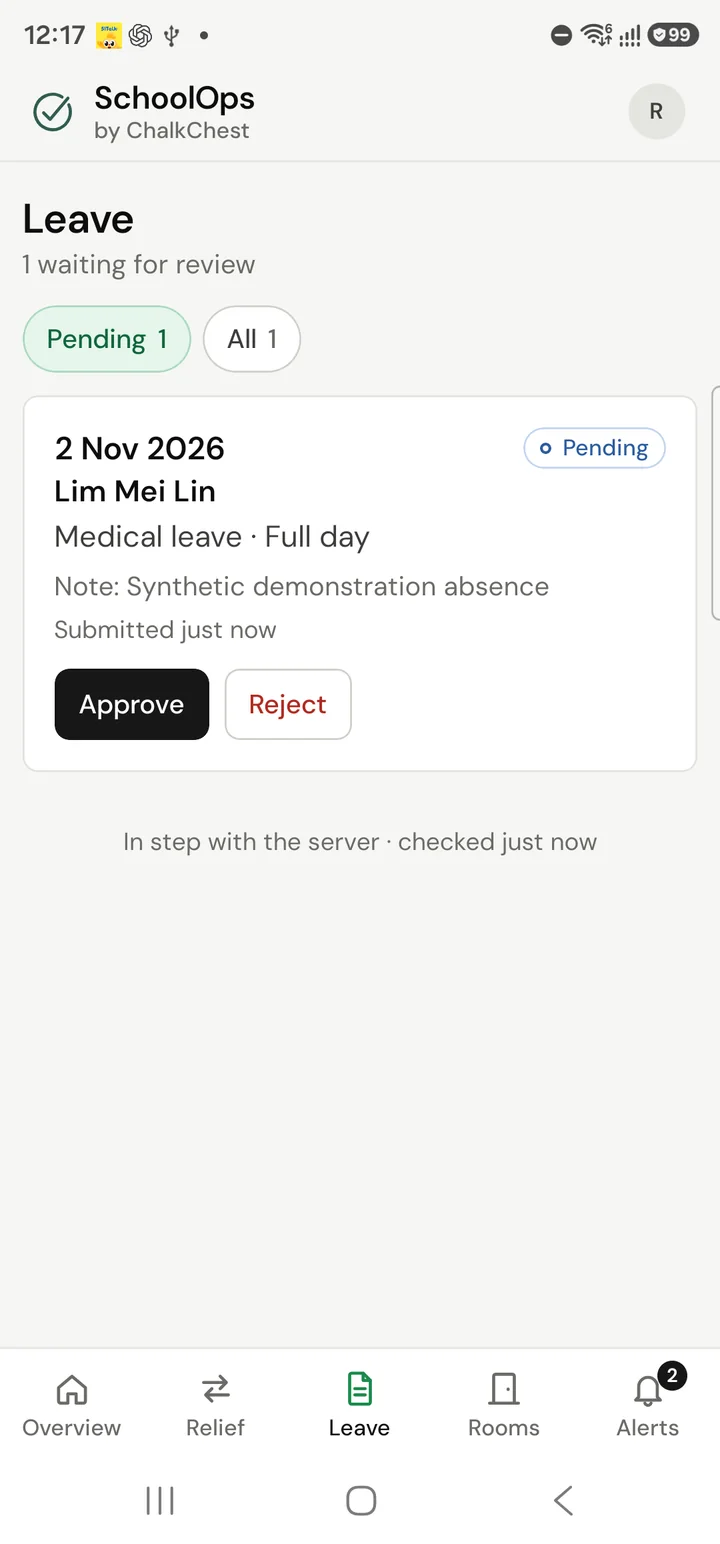
The coordinator’s Leave tab on the phone with one request waiting, and Approve and Reject buttonsFictional demo data Tap the Relief tab. The top line says how many lessons are still to decide for the day. Tap Generate relief options to have a teacher proposed for every lesson that needs cover.
Tap a lesson. You see its room, who is away and who is proposed. Change venue moves it to another room for that day.
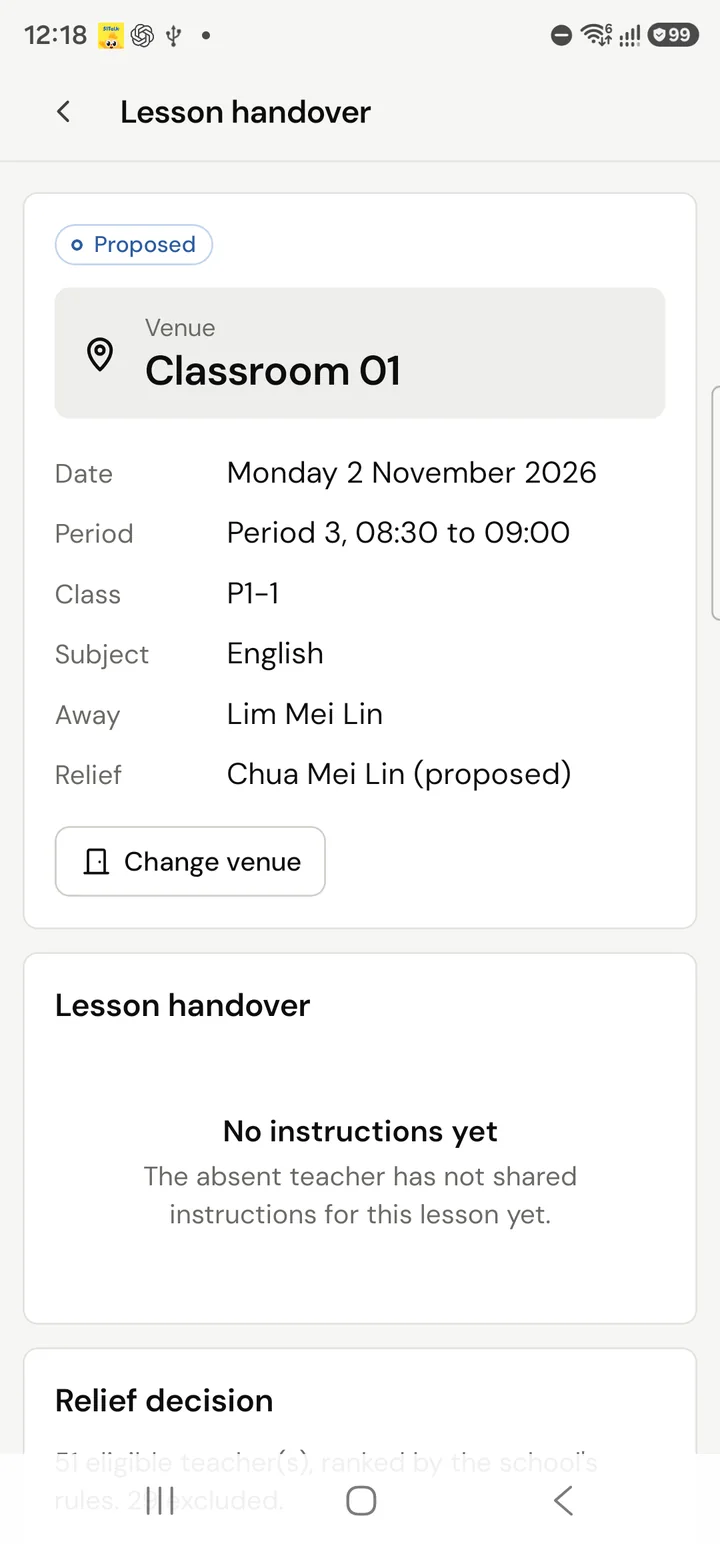
A lesson needing cover, marked Proposed, with its room, the absent teacher, the proposed teacher and a Change venue buttonFictional demo data Scroll to Relief decision. The teachers who can take the lesson are listed best first, each with the reasons: relief already done this week, same department or not, whether they teach the class, and how it affects their day. Tap Approve beside the one you choose. That teacher is told at once.
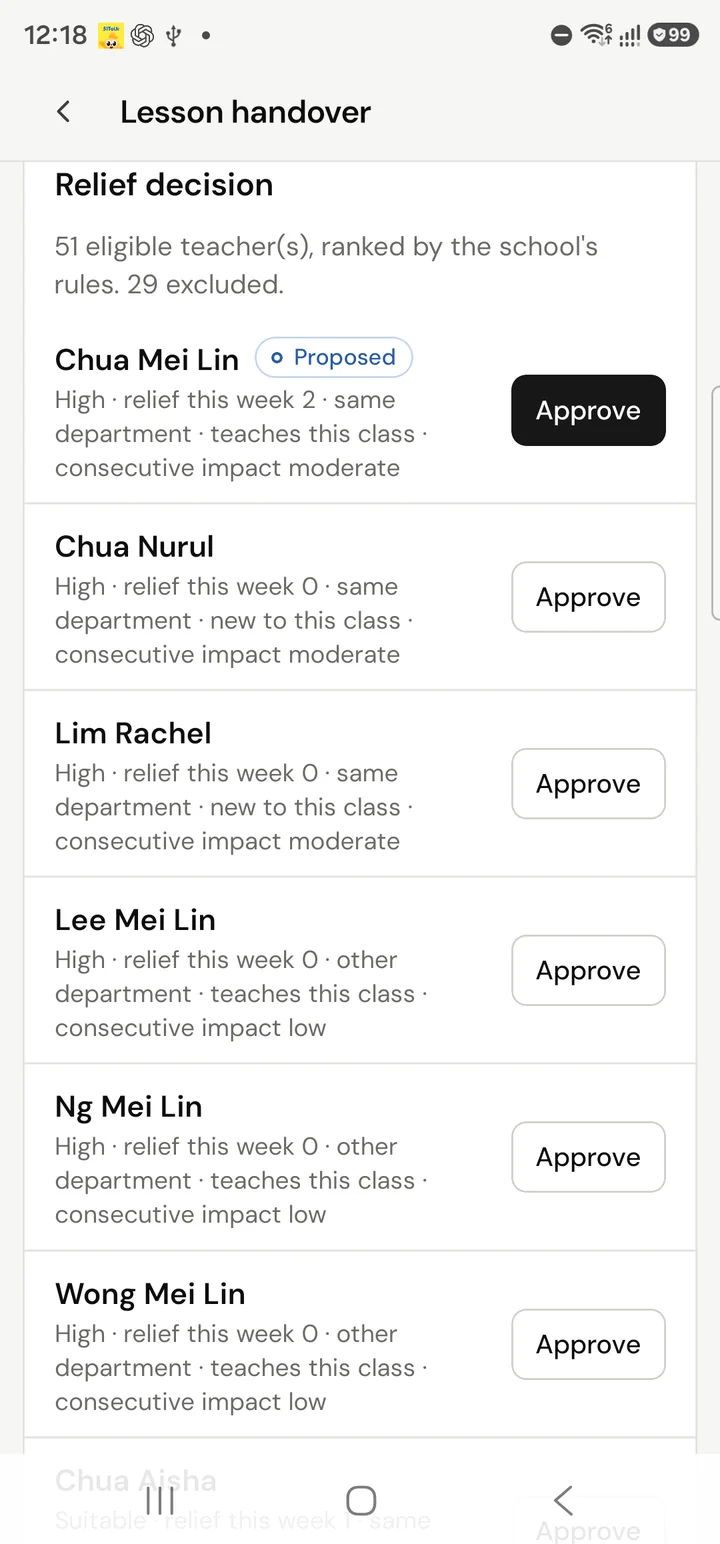
The list of teachers who can take the lesson, ranked, each with reasons and an Approve buttonFictional demo data To change your mind, open the lesson again and tap Cancel approval, then approve someone else.
Two things are on the web only: Approve all proposed, which approves every proposed teacher in one step, and Combine relief classes.
On the web
Approve the leave
Open Leave. A request that is waiting for you has Approve and Reject beside it.
The Leave page with one request waiting and one already approvedFictional demo data Choose Approve. SchoolOps finds the lessons that now need cover and proposes a teacher for each one. Nothing is assigned yet. Every proposal waits for a person to approve it.

Approving a leave requestFictional demo data
See the day
Open Relief. Staff across the day shows every teacher against the periods of the day: free, teaching, covering, away or unavailable. It never shows why someone is away. To cover lists each lesson that still needs a teacher.
The Relief page with the lessons to cover and the staff gridFictional demo data
Assign one lesson yourself
Choose a lesson under To cover. Its period is marked in the grid and the teachers who can take it are listed first, best match first. Choose Assign beside a teacher, then Assign again to confirm.
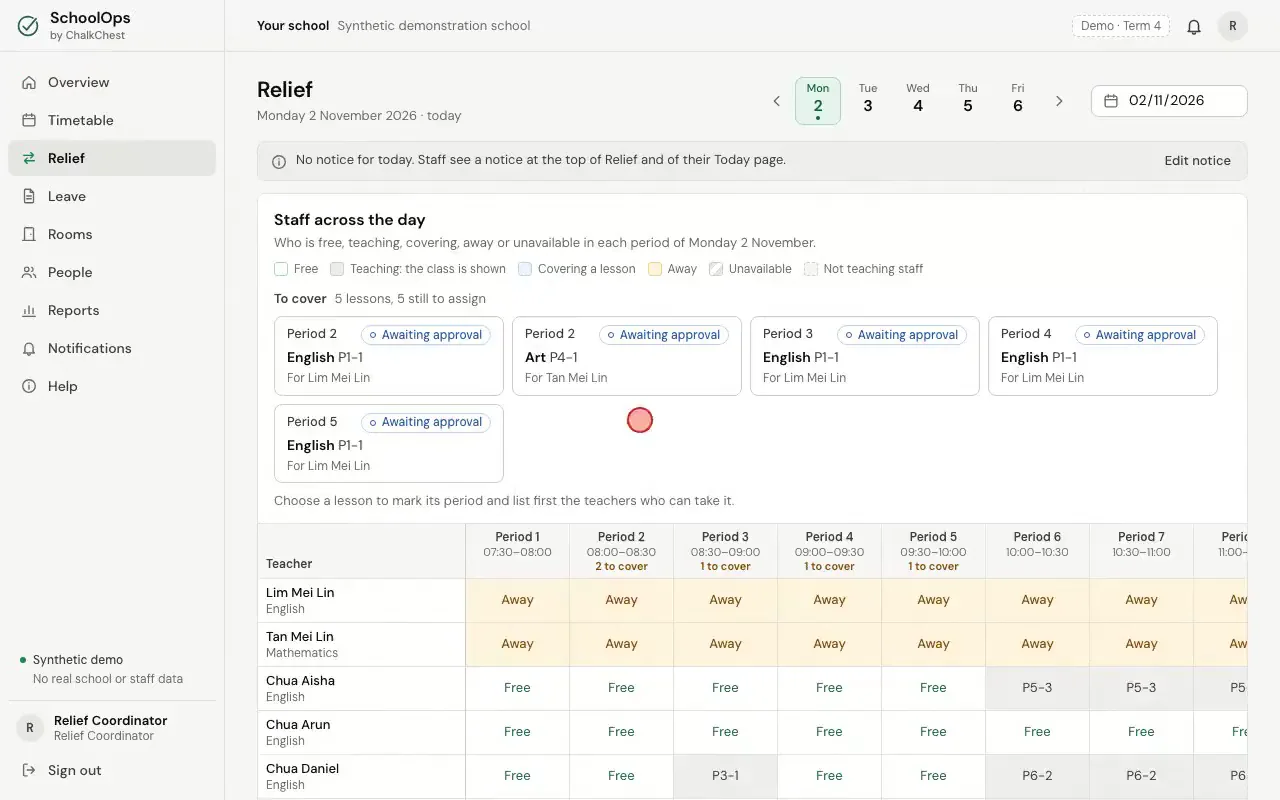
Choosing a lesson to cover, then assigning the first teacher listedFictional demo data Or work from the cards further down the page. Each card lists the teachers who can take the lesson, in order, with the reasons. Pick one and choose Approve assignment.
A lesson card with its ranked teachers and the Approve assignment buttonFictional demo data
When the rules leave someone out
On a card, choose Inspect excluded candidates to see who is left out of that lesson, and why.
The list of teachers the rules leave out, with the reason beside eachFictional demo data Where the reason is school policy, such as an exemption or the weekly relief cap, Assign anyway lets you give that teacher the lesson. You write a reason and it is kept with the assignment. It is not offered when the teacher is away or already teaching at that time.
The Assign anyway window with a reason typed inFictional demo data
Approve the rest in one step
Approve all proposed asks you to confirm. It then approves every proposed teacher for the day and alerts each of them. Any that can no longer be approved are left for you to decide, with the reason.
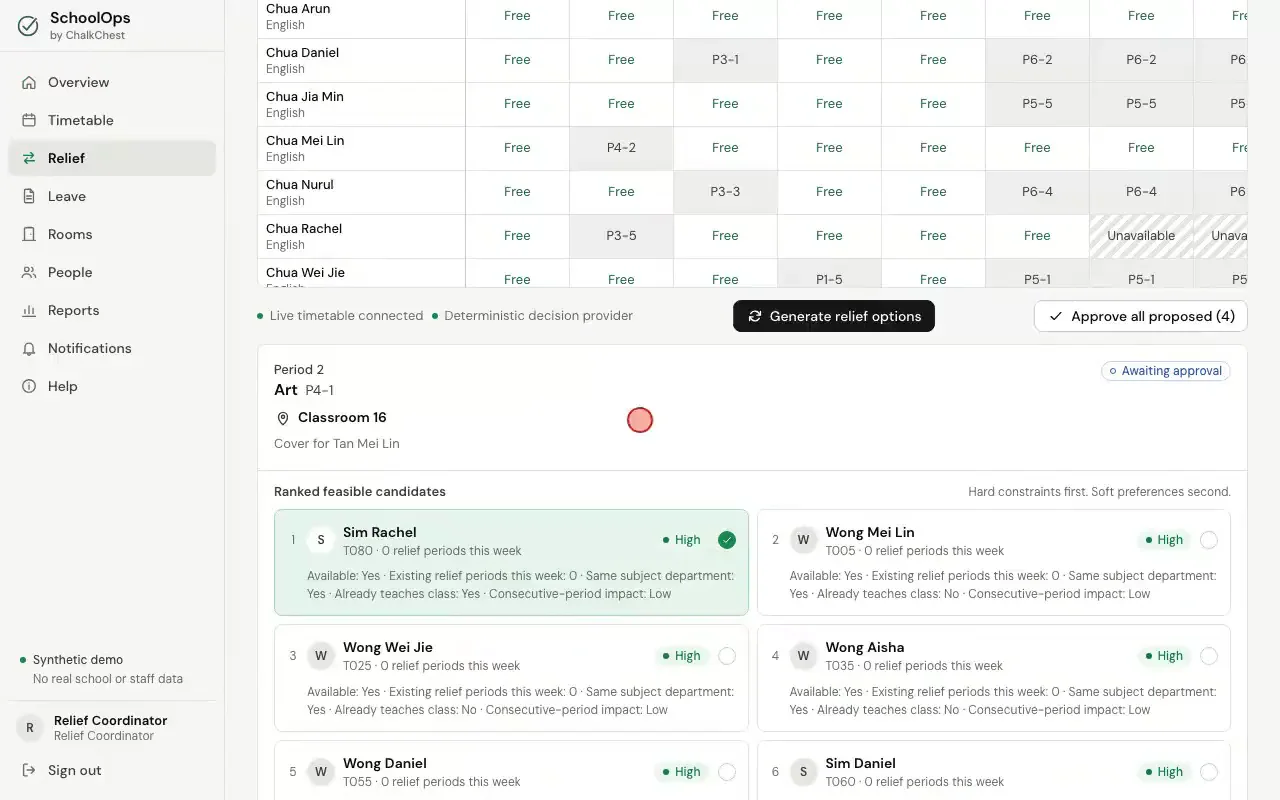
Choosing Approve all proposed and confirmingFictional demo data An approved lesson shows the teacher’s name. Cancel approval takes the lesson back, and the teacher is told.
An approved lesson card with the Cancel approval buttonFictional demo data
Other things on the Relief page
Generate relief options plans the whole day again around what is already approved. Use it after something changes, such as another absence.
Combine relief classes puts two or more classes that meet at the same time under one teacher. Choose the lessons, pick a room or let SchoolOps find one large enough, choose the teacher, then choose Check and propose combined class. The combined class still waits for your approval.
The Combine relief classes sectionFictional demo data Edit notice writes a short notice for the day. Choose Save notice and every member of staff sees it at the top of Relief and of their Today page.
Writing a notice for the dayFictional demo data