SchoolOps by ChalkChest · For every teacher and staff member
Booking a room
Find a free room for a period and book it, from your phone or the web.
The pictures and clips show the real product with a made-up school, staff and classes. Fictional demo data.
On the phone
Tap the Rooms tab.
Tap the day, then the period you want. The rooms that are free for that period are listed under Free, each with its type, how many it seats and what it has.
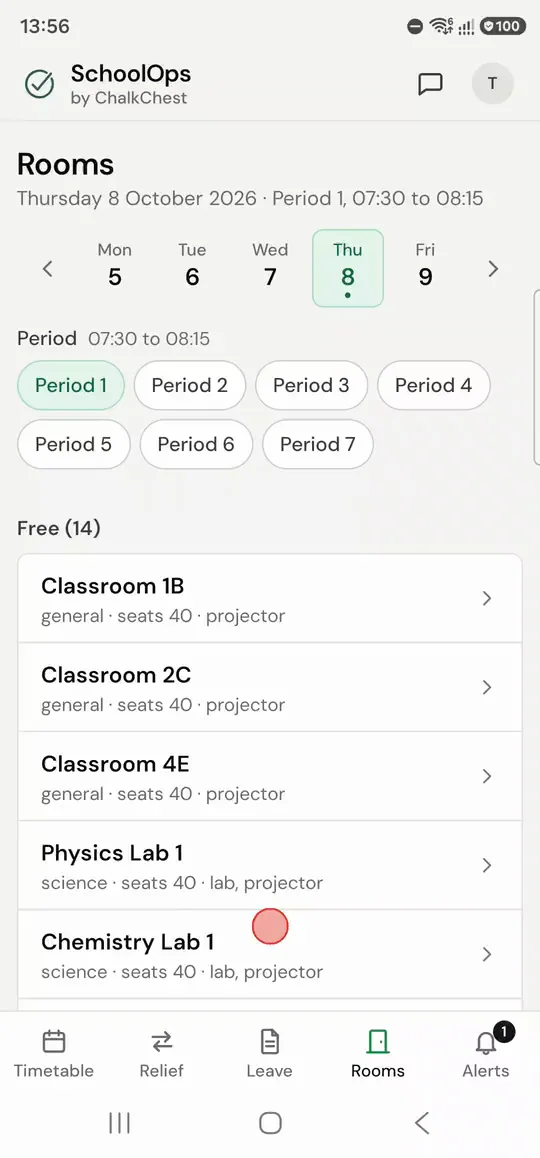
A short clip: choosing a period and a day on Rooms, then tapping a free room to open the booking formFictional demo data 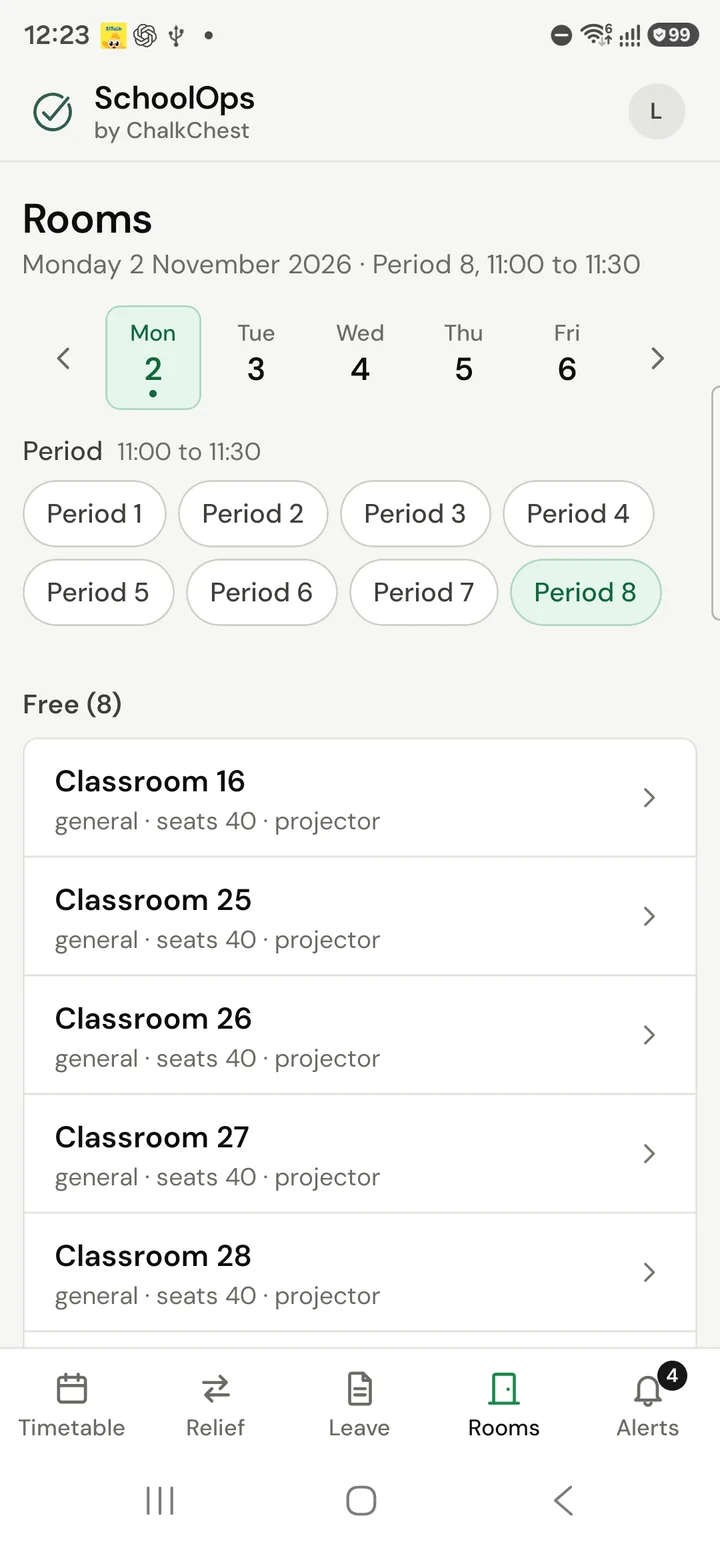
The Rooms tab on the phone for one period, listing eight free rooms with their seats and equipmentFictional demo data Tap a room. Book a room opens with the date, period and room filled in.
Change the Starting period or the Length if you need to, and type the Purpose.
Tap Book.
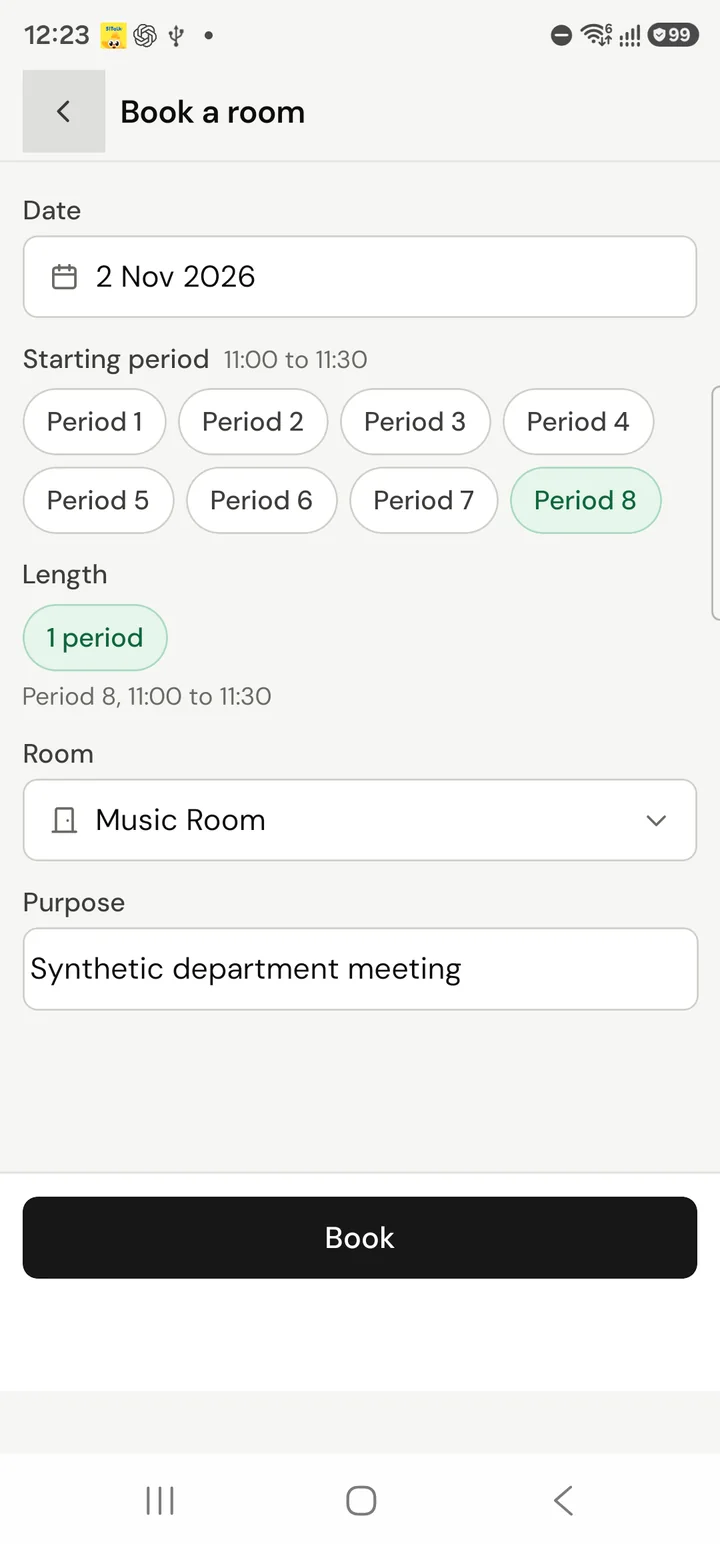
The Book a room form, with the date, the starting period, the length, the room and the purposeFictional demo data
Your booking is now listed under the day’s bookings, and the room shows as already booked for everyone else. Cancel beside your booking gives the room back.

The timetable and other bookings are checked first, so a room that is in use cannot be booked.
On the web
Open Rooms. Book a room is at the top. The day you are booking for is shown at the top right. Use the days of the week or the date box to pick another day.
The Rooms page with Book a room at the topFictional demo data Choose the Start period and the Number of periods. Available room then lists only the rooms that are free for those periods. Lessons, room changes, school events and other bookings are all checked for you. Pick a room, type a Purpose and choose the Book room for button.

Choosing a period and a free room, typing the purpose and booking the roomFictional demo data Your booking is listed under the form, with the room, the periods, the purpose and who booked it. Cancel beside it gives the room back.
The new booking in the list under the formFictional demo data