SchoolOps by ChalkChest · For every teacher and staff member
A relief duty and its handover
See the lesson you are covering and its room, leave instructions for the teacher covering yours, and message each other.
The pictures and clips show the real product with a made-up school, staff and classes. Fictional demo data.
On the phone
If you are covering a lesson
You get an alert when a relief duty is given to you. Tap it, or open the Relief tab and look under My relief duties.
Tap the lesson. The Lesson handover screen shows the room first, then the date, period, class, subject, who is away and who is covering.
Read the instructions under Lesson handover. If the absent teacher has not written any yet, the screen says No instructions yet and you are told when they do.
Tap Acknowledge so the absent teacher and the coordinator know you have seen it.
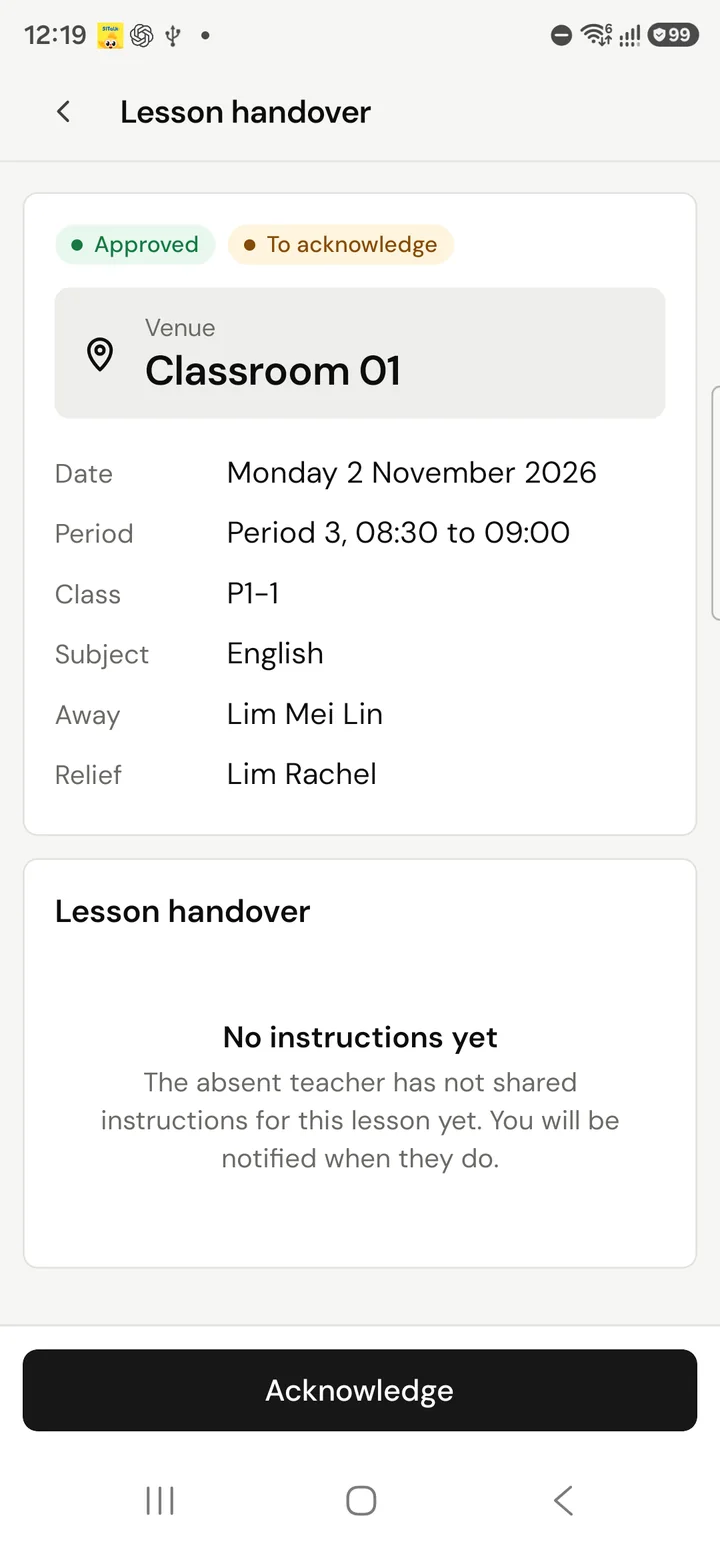
A relief duty on the phone, marked Approved and To acknowledge, with the room, the lesson details and an Acknowledge buttonFictional demo data 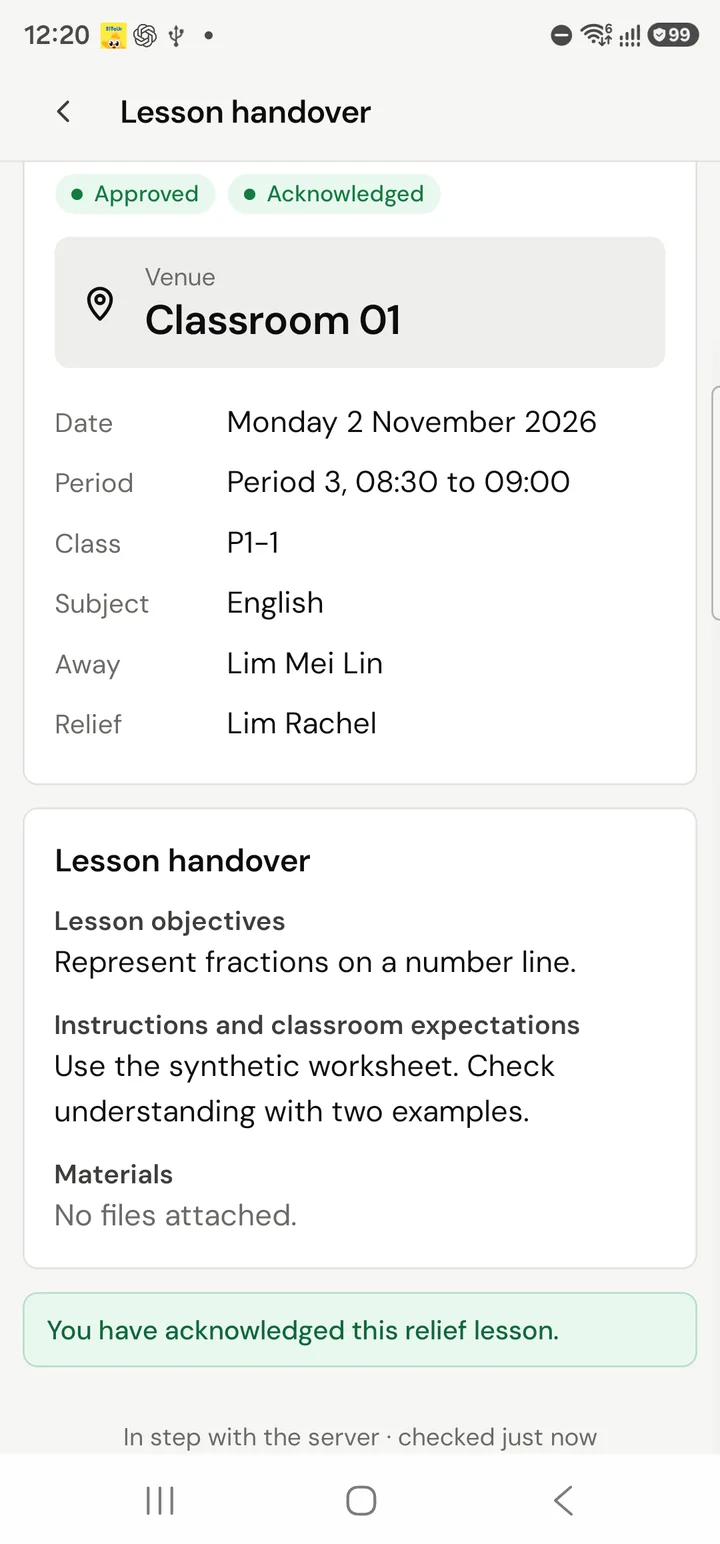
The same relief duty after the instructions arrived and Acknowledge was tapped, showing the lesson objectives and the instructionsFictional demo data
If you are the one away
Open the Relief tab. Your own lessons are listed under My lessons while I am away, each marked Relief being arranged or Relief arranged.
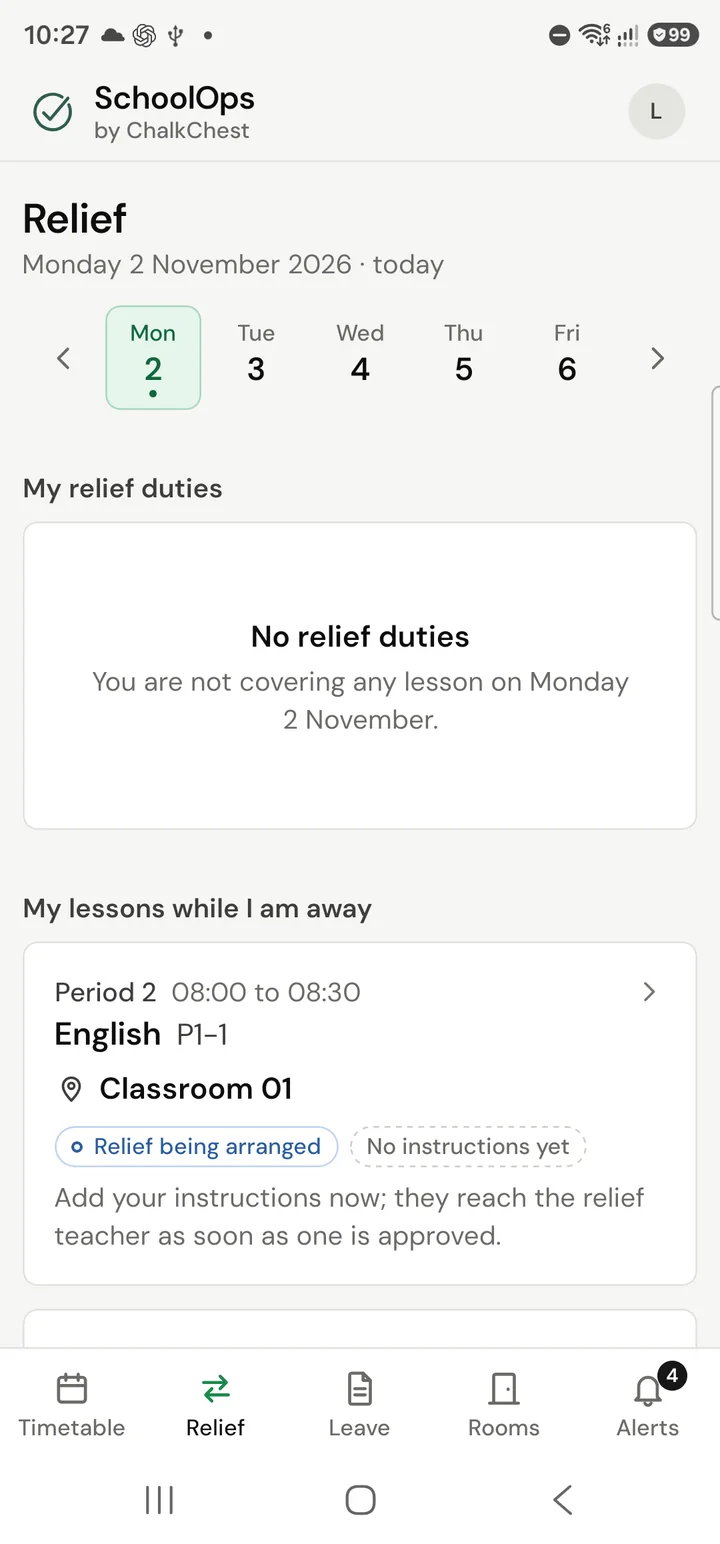
The Relief tab on the phone, with My relief duties above and My lessons while I am away belowFictional demo data Tap a lesson, then Add instructions. You can do this before a relief teacher has been chosen. The instructions reach them as soon as one is approved.
Fill in Lesson objectives and Instructions and classroom expectations. Tap Attach a file to add a worksheet or slides, where your school allows files.
Tap Share handover. The relief teacher is told on their phone straight away.
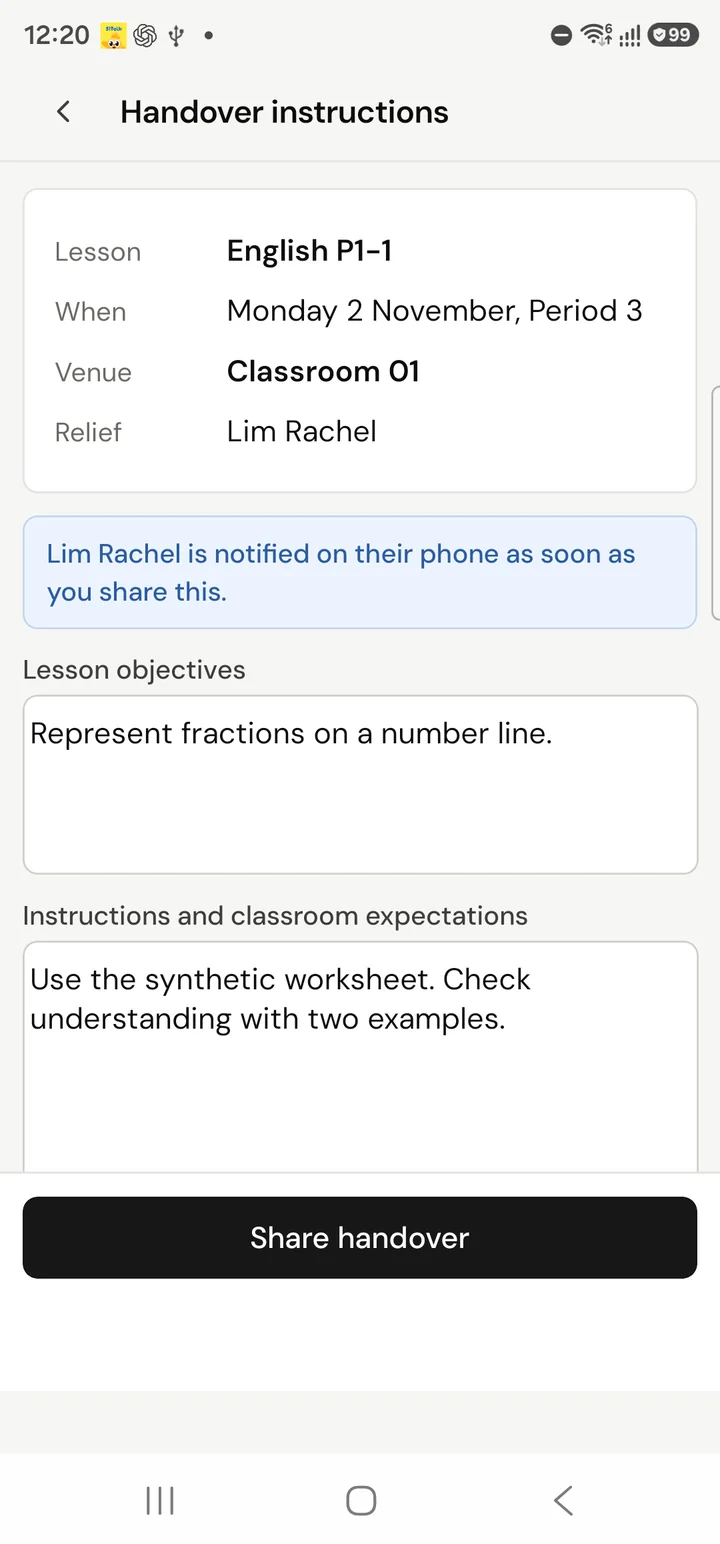
The Handover instructions form, with the lesson, the room and the relief teacher at the top, then boxes for objectives and instructions, and a Share handover buttonFictional demo data
Messaging each other
On a relief lesson’s handover screen, tap Message followed by the other teacher’s name. This opens a conversation between the absent teacher and the relief teacher with the lesson attached, so nobody has to explain which lesson it is. No administrator is in between.
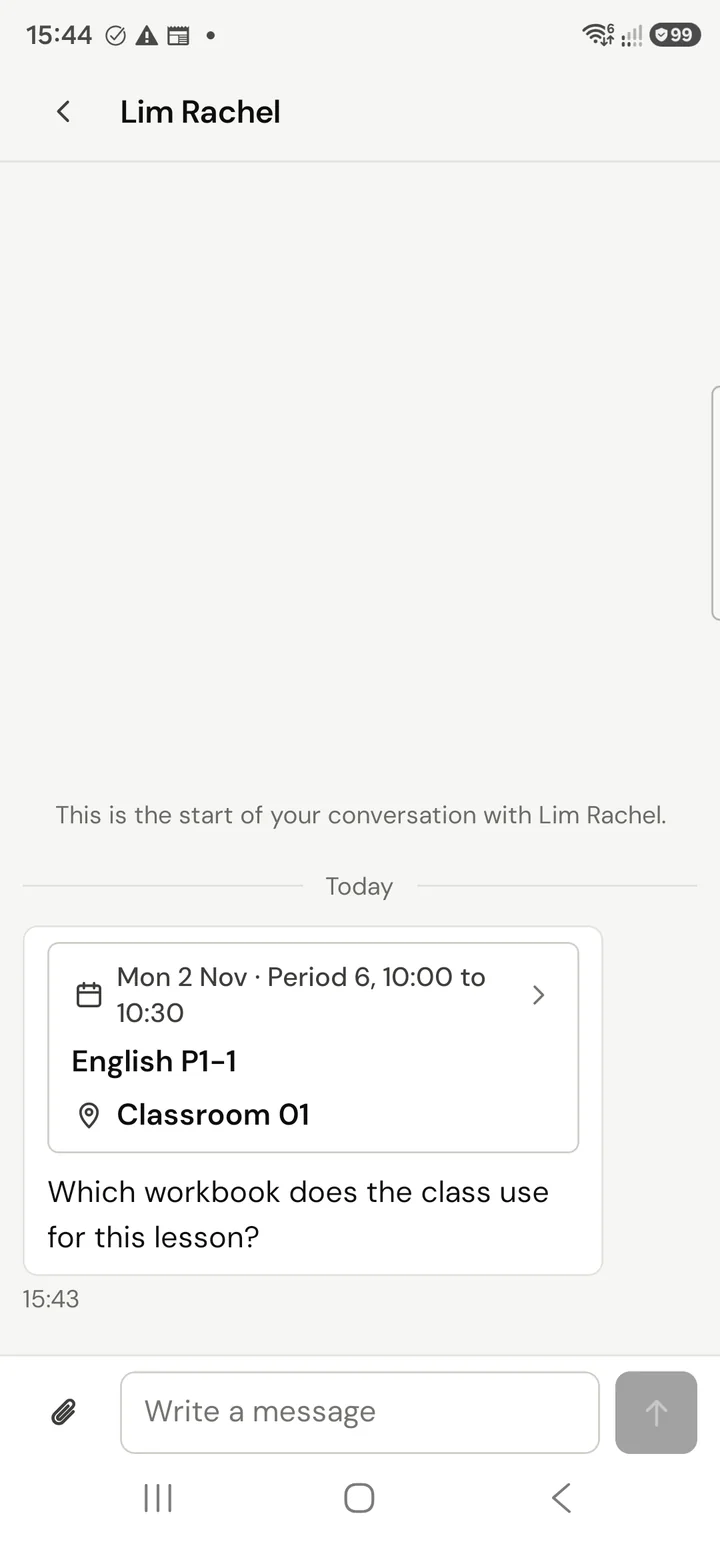
Tap the paperclip to send a file.
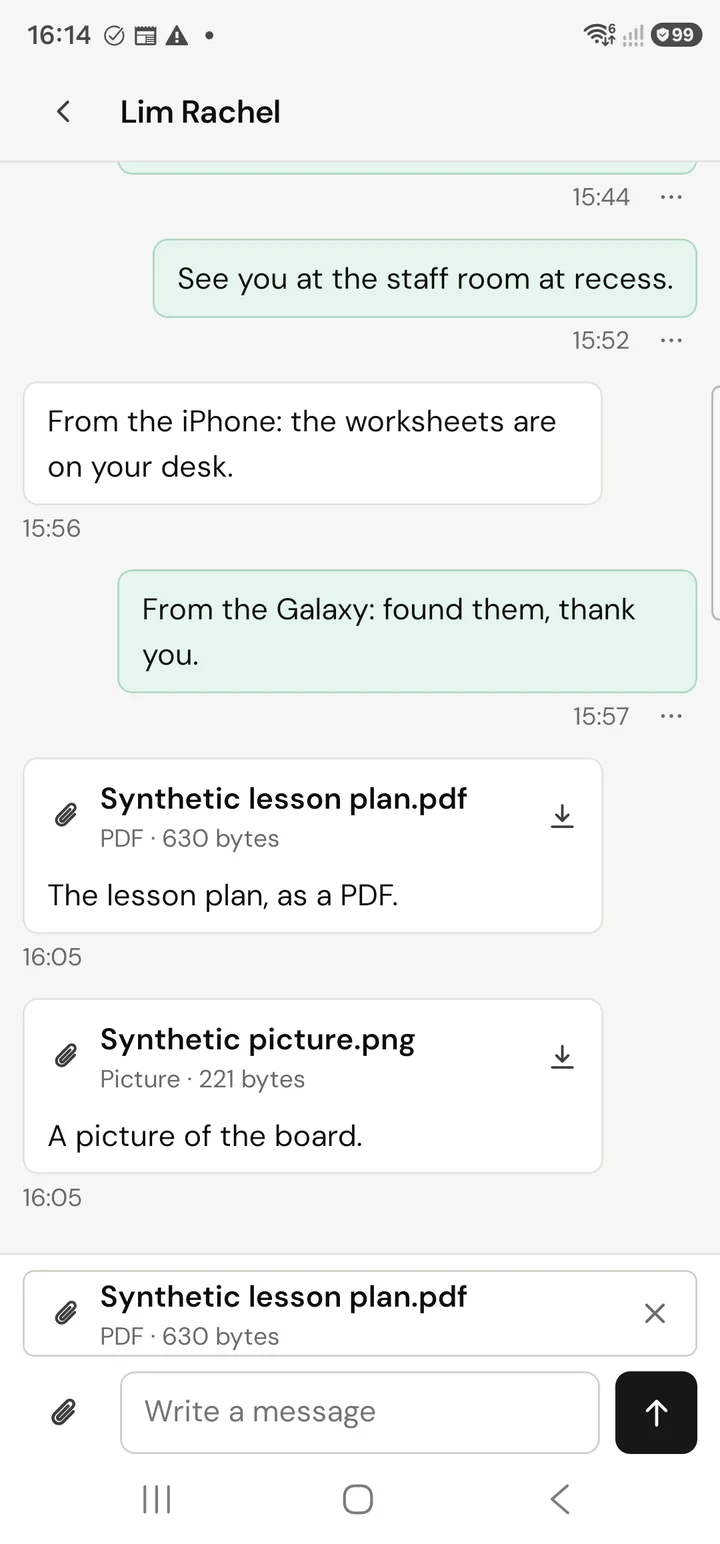
You can also open Messages from the speech bubble at the top of the app and tap New message to write to any colleague who has an account. Messaging is on the phone app only, and only where your school has switched it on.
On the web
If you are the teacher who is away
Open Relief. Each of your lessons that needs cover has its own card, with the period, the class, the room and, once it is approved, the teacher who is covering it.
A lesson card on the Relief page showing the room and the covering teacherFictional demo data On the lesson’s card, choose Add or update instructions. Fill in Lesson objectives and Instructions and classroom expectations, attach a file under Digital material if you have one, and choose Share handover.
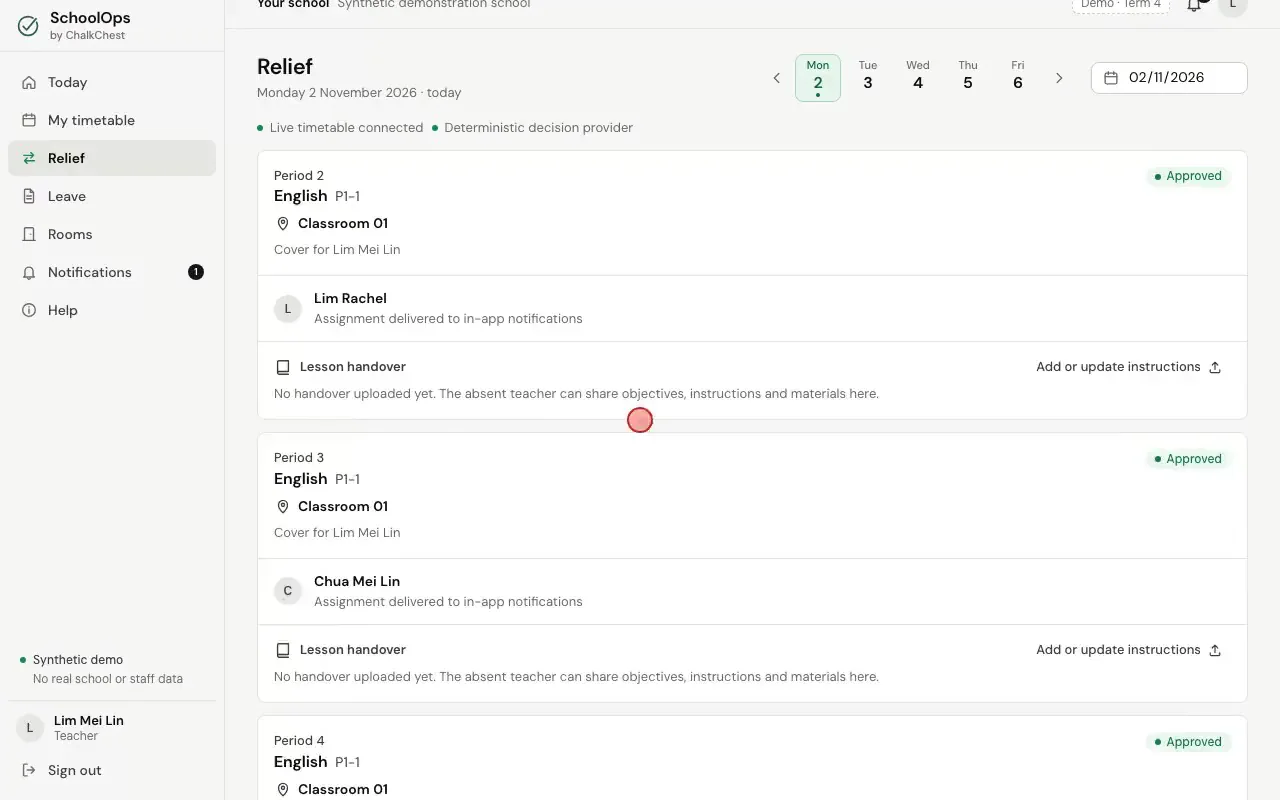
Writing the handover, attaching a worksheet and sharing itFictional demo data The handover now shows on the card. The teacher covering the lesson is told at once and sees exactly what you see here. You can come back and change it with the same button.
The lesson card with its objectives, instructions and attached fileFictional demo data
If you are covering the lesson
Open Today. Under Your relief assignments you will find each lesson you are covering, with its period, class and room, and the handover below it.
The Today page with a relief assignment, its room and its handoverFictional demo data Read the handover, open the attached file if there is one, and choose Acknowledge so the school knows you have seen it.
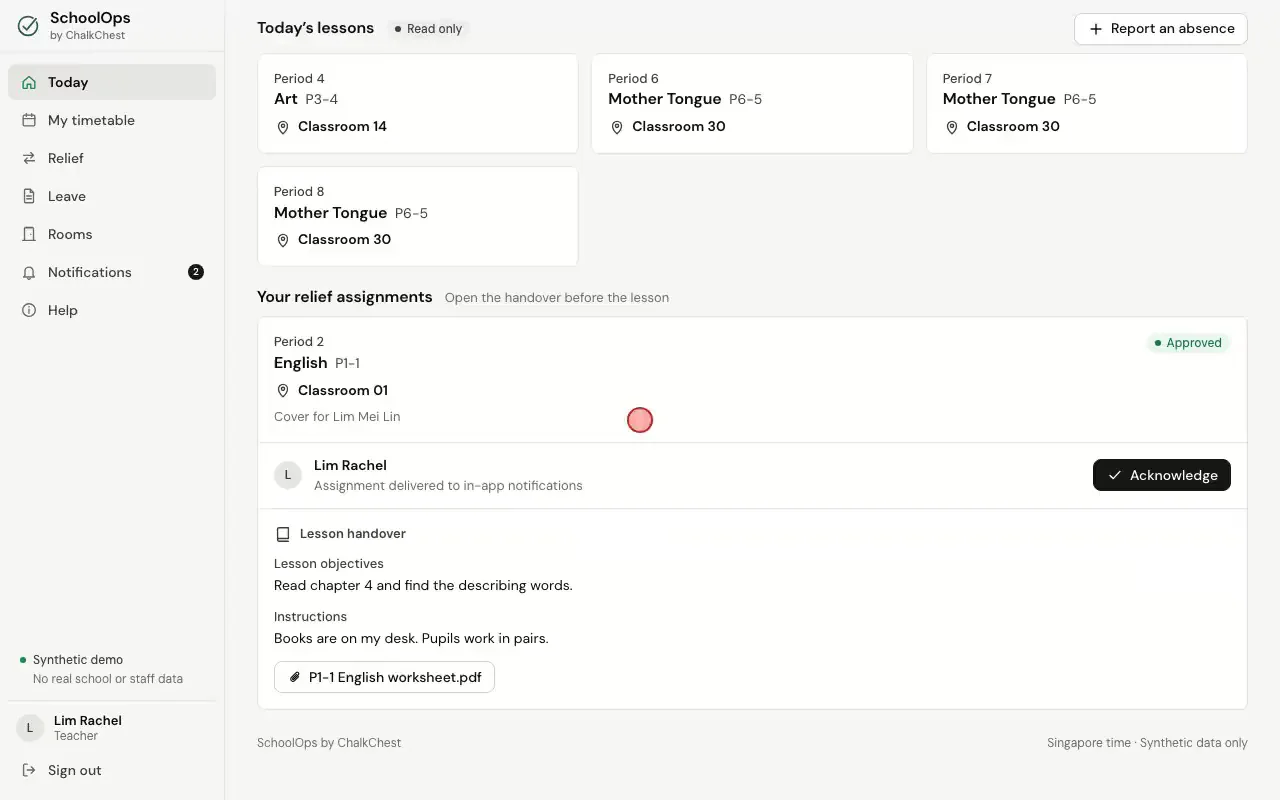
Reading the handover and choosing AcknowledgeFictional demo data The Notifications page keeps the alerts about your relief lessons, so you can find them again later.
The Notifications page of the teacher who is coveringFictional demo data