SchoolOps by ChalkChest · For the timetable administrator
Generating and publishing a timetable
Start a timetable, leave it to finish on the server, check it and publish it to every teacher.
The pictures and clips show the real product with a made-up school, staff and classes. Fictional demo data.
On the phone
A timetable planner can follow a timetable and publish it from the phone.
Tap the Timetable tab to see Timetable versions. A timetable that is being worked out carries on by itself on the server if you leave this screen or put the phone away.
When a draft is ready, tap Publish version on it.
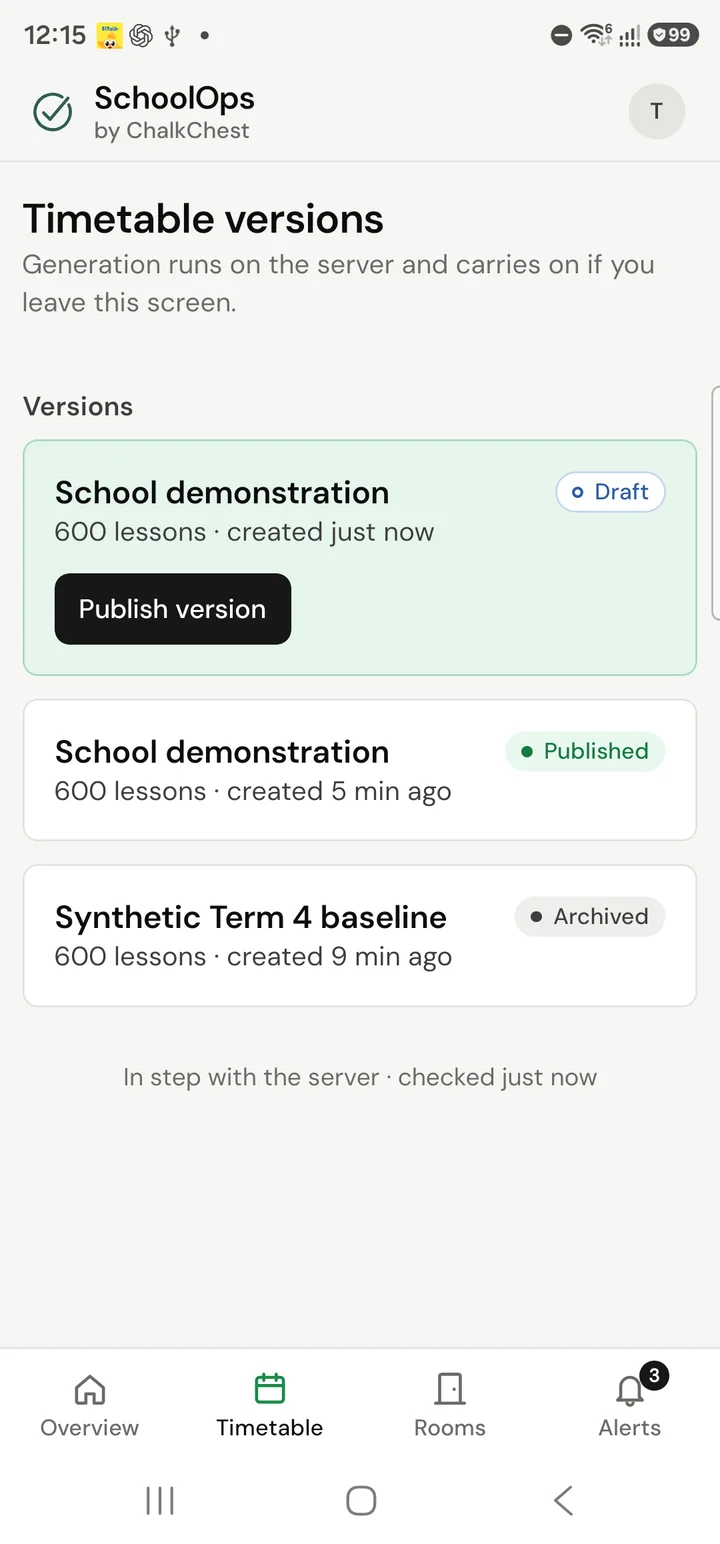
Timetable versions on the planner’s phone, with a new draft and its Publish version buttonFictional demo data The screen confirms that the version is published and all staff have been notified.
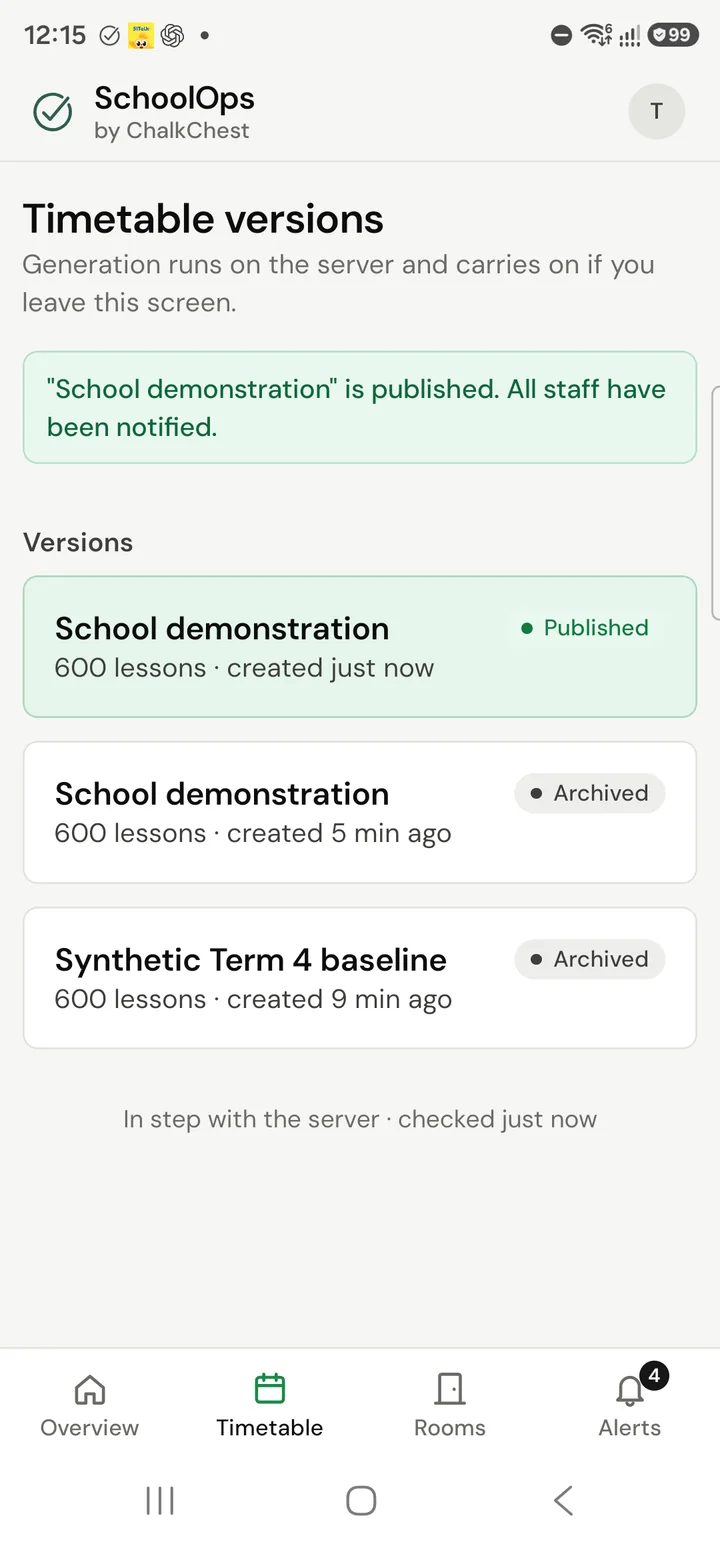
Timetable versions after publishing, with a message that the version is published and all staff have been notifiedFictional demo data
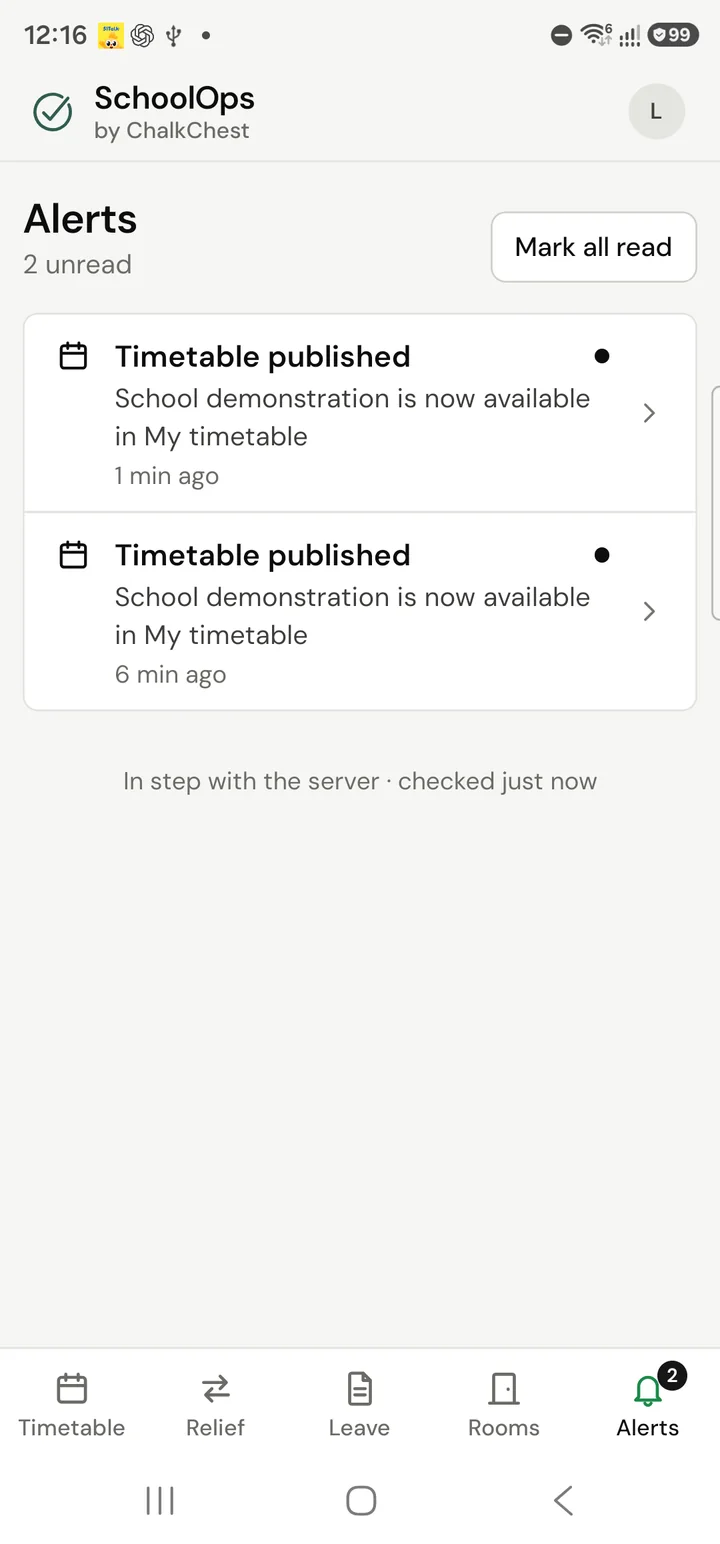
Every teacher gets a Timetable published alert. Tapping it opens their own timetable.
On the web
Open Timetable and find Generate a timetable.
The Generate a timetable sectionFictional demo data Type a Version name and choose Generate timetable. The work is done on the server, so you can leave this page and come back when it is ready.
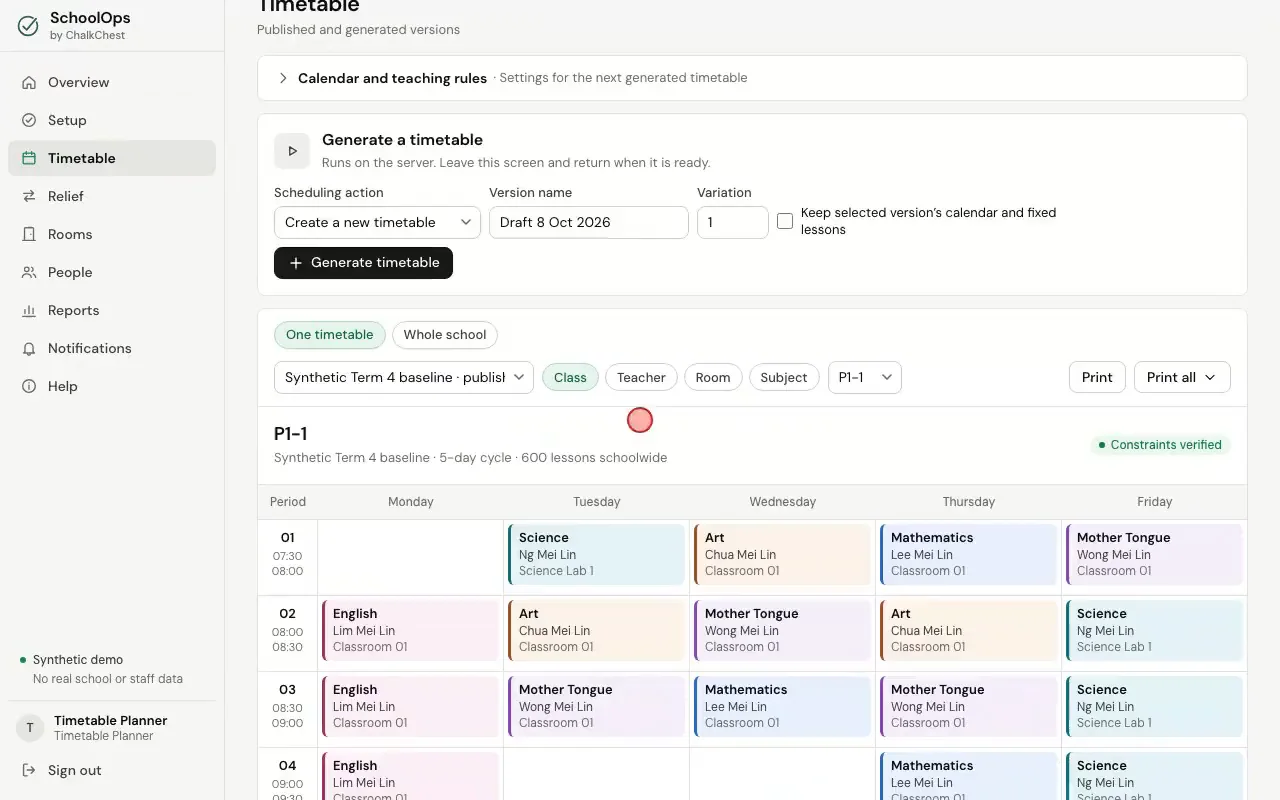
Naming a version and starting the generationFictional demo data When the server has finished, the version is marked Completed and a message says how it went. A version is saved only when every rule is met. If the rules cannot all be met, you are shown which ones to review. Choose View generated version.
The finished generation with View generated versionFictional demo data The new version is a draft. Teachers do not see a draft.
The new draft chosen in the list of versionsFictional demo data Look it over. One timetable shows a single class, teacher, room or subject. Whole school shows every class, teacher or room in one grid.
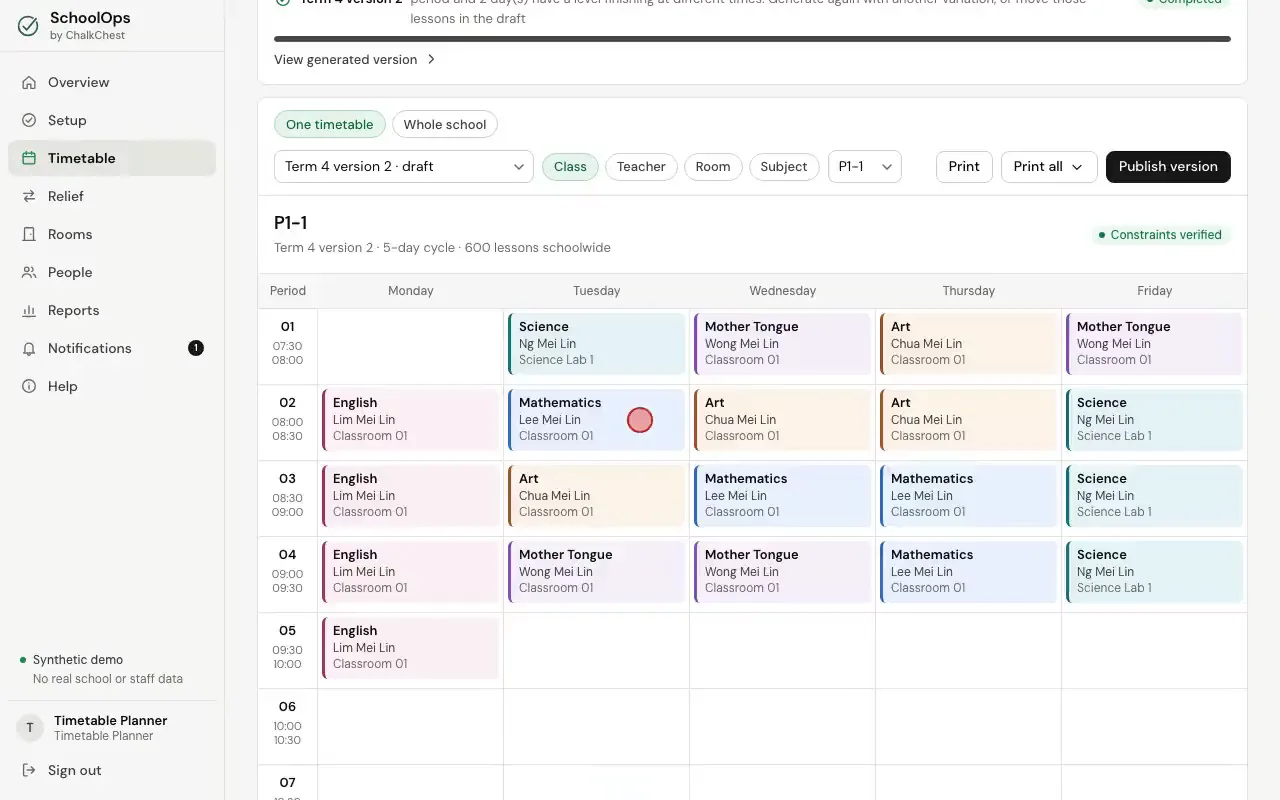
Looking at the draft by teacher and by room, then the whole schoolFictional demo data The whole school in one gridFictional demo data Print prints what is on the screen. Print all prints one sheet for every class, every teacher or every room.
The Print all choicesFictional demo data When you are happy with it, choose Publish version. It becomes the school’s timetable and every teacher sees their own at once. Publishing is refused while relief is approved for today or a later date. Cancel or complete that relief first.
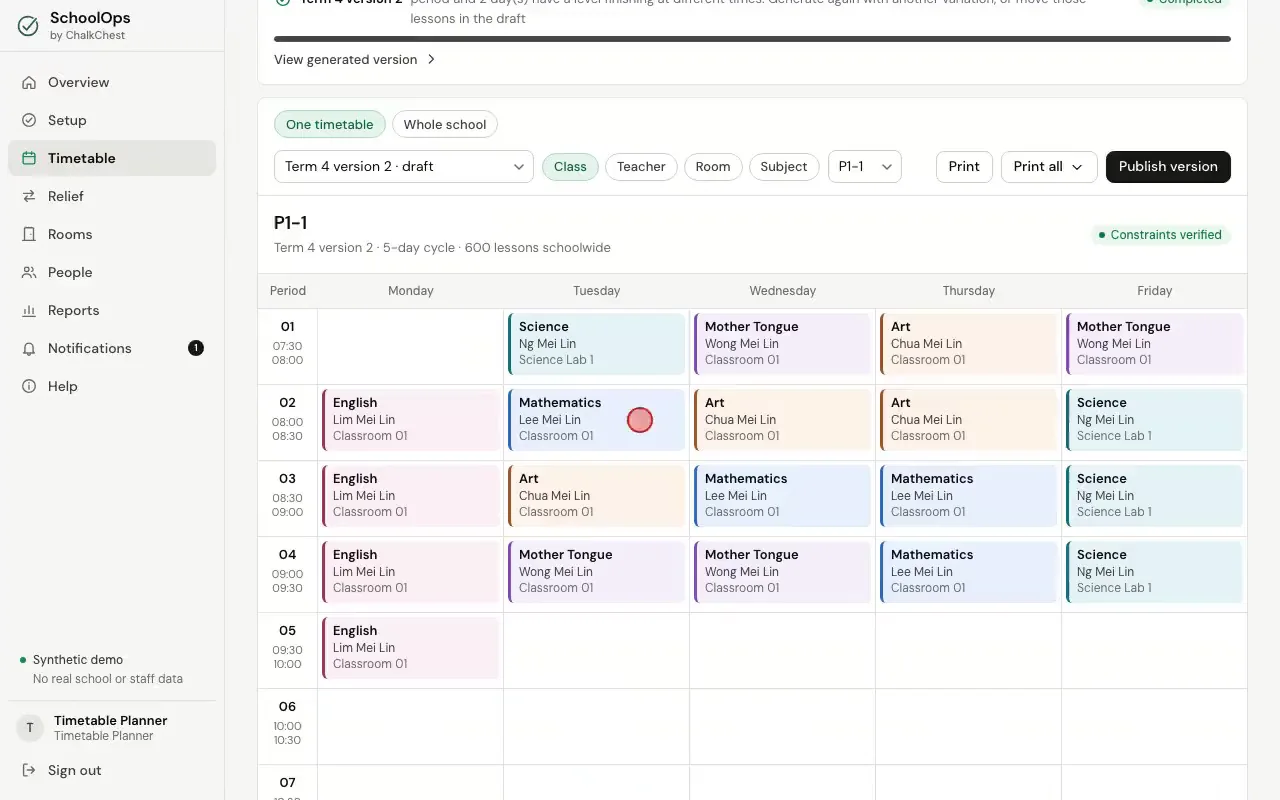
Publishing the versionFictional demo data The version now marked as publishedFictional demo data Teachers are told on their Notifications page, and on the phone app where your school uses it. My timetable shows each teacher their own week, with the room for every lesson.
A teacher’s alert that a timetable was publishedFictional demo data A teacher’s own week on My timetableFictional demo data