SchoolOps by ChalkChest · For the timetable administrator
Timetable rules
Set teaching limits, the cycle, even spread, subject groups and lessons that must run together.
The pictures and clips show the real product with a made-up school, staff and classes. Fictional demo data.
On the web
These settings are what the next generated timetable follows. Changing them does not change a timetable that is already published.
Open Timetable, then open Calendar and teaching rules.
Calendar and teaching rules on the Timetable pageFictional demo data The cycle. Teaching cycle is five days, or ten days with weeks A and B. Kind of cycle says what happens after a holiday. Rotating gives the next school day the lessons that were missed. Fixed to weekdays keeps each weekday’s own lessons. Day labels are weekday names, or Day 1, Day 2 and so on. The preview shows what each of the next ten school days will run.
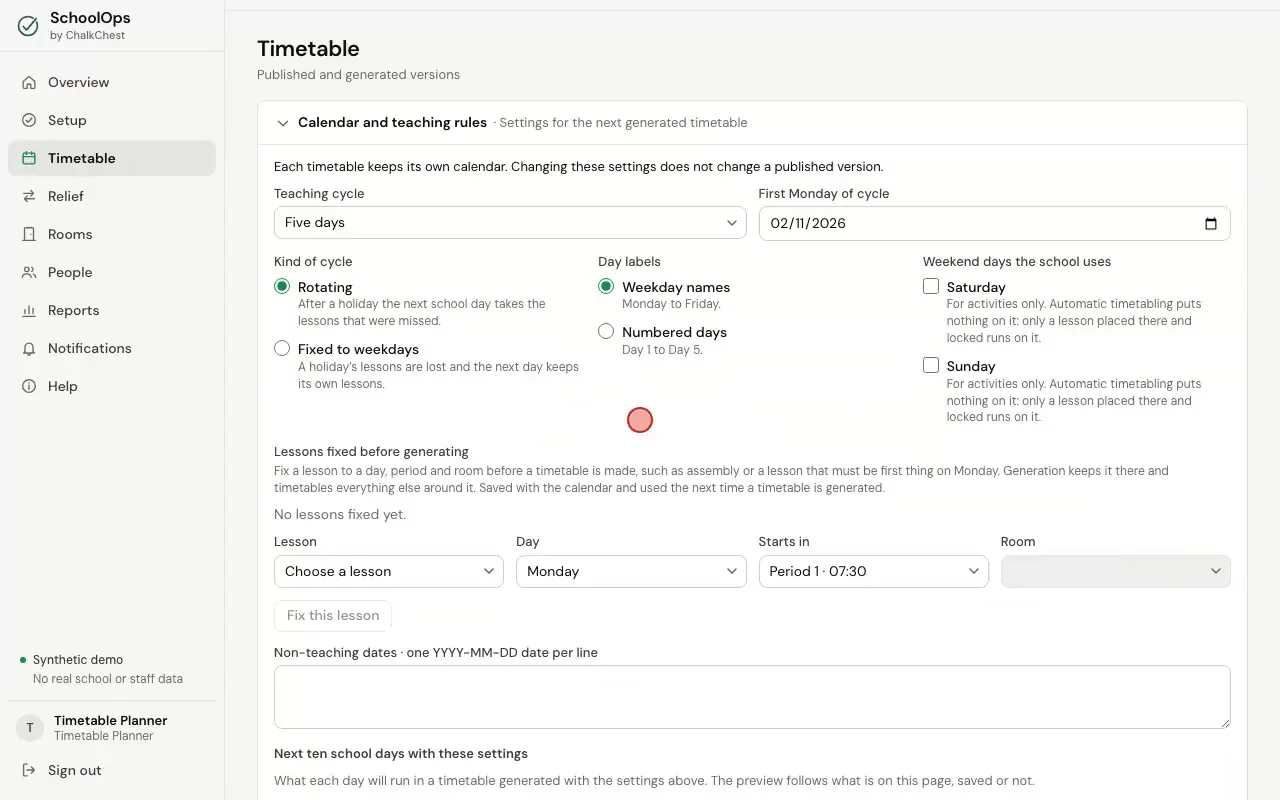
Choosing a cycle fixed to weekdays and numbered days, then the preview of the next ten school daysFictional demo data Lesson times. Each period has a name, a start and an end. Add period and Remove last period change how many periods the day has.
The lesson timesFictional demo data Teaching time limits. Type the most minutes a teacher may teach in a day, in a week and in a row. There are the same three boxes for a class, and two for a subject. Leave a box empty for no limit. Under the limits are two tick boxes: Spread each subject evenly over the cycle and Keep double periods clear of recess and breaks. Choose Save calendar and rules.
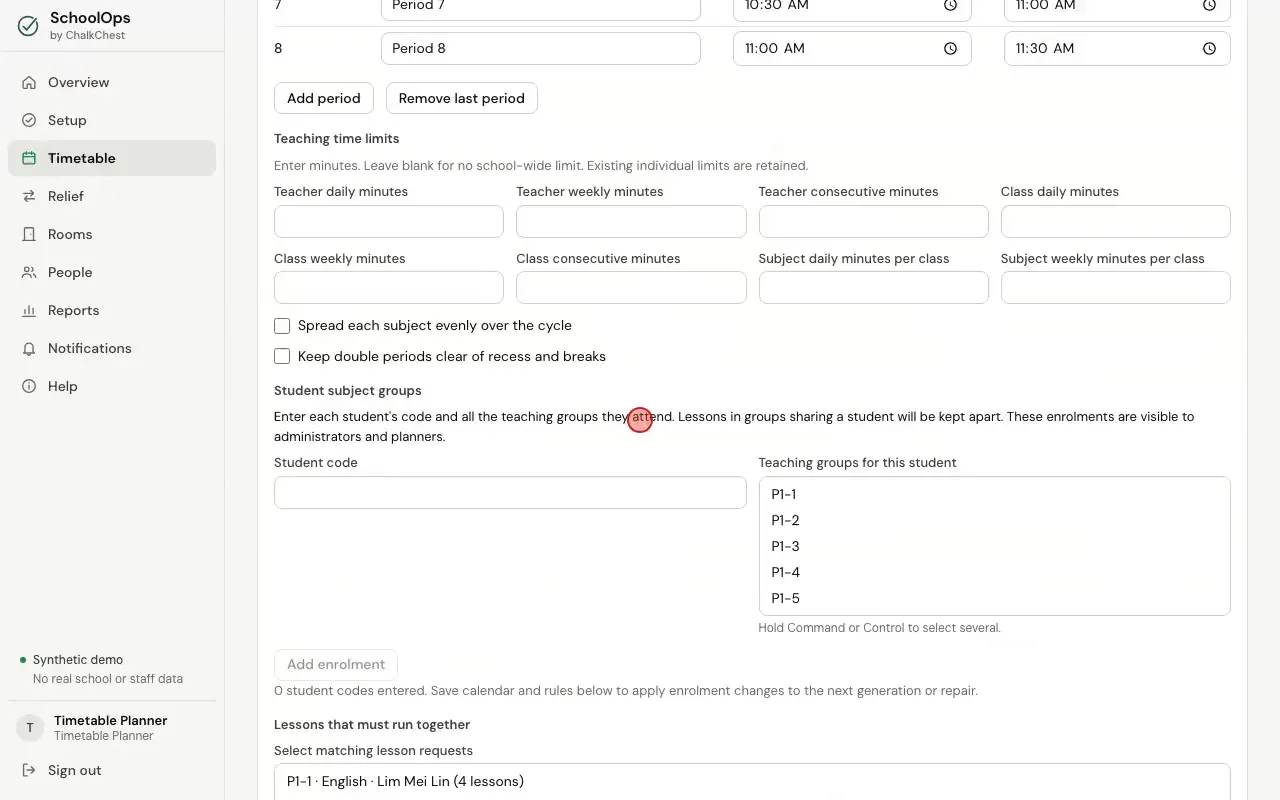
Typing two limits for teachers, ticking a box and savingFictional demo data The teaching time limits and the two tick boxesFictional demo data Student subject groups. Where pupils from different classes are taught together in groups, type each pupil’s code, choose the groups they attend and choose Add enrolment. Lessons for groups that share a pupil are kept apart.
Student subject groups, with one pupil enteredFictional demo data Lessons that must run together. Choose the lessons that must be held at the same time, such as the same subject across several classes, and choose Add teaching band. Then choose Save calendar and rules.
Two lessons added as one teaching bandFictional demo data One teacher’s own limits. On People, choose Edit rules beside a teacher. Combined weekly workload cap is the most periods that person may be given in a week, teaching and relief together. Periods when this person is not available opens a grid. Tick each period the person cannot teach, then choose Save rules.
One teacher’s weekly cap and the periods when they are not availableFictional demo data