SchoolOps by ChalkChest · For the relief coordinator
Reports and the daily absence email
Absence and relief over any period, how much each room is used, and a daily email of who is away.
The pictures and clips show the real product with a made-up school, staff and classes. Fictional demo data.
On the web
Absence and relief over a period
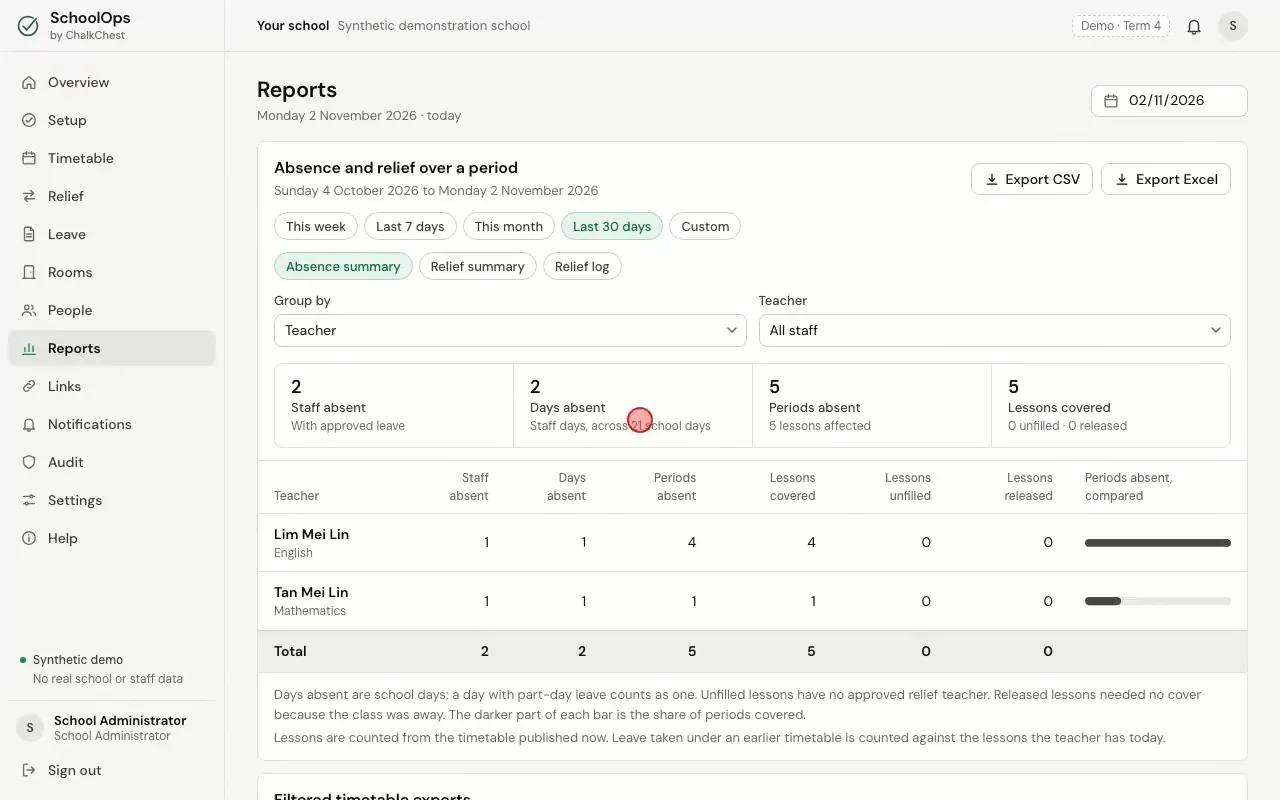
Open Reports. Absence and relief over a period starts with the last 30 days. Choose This week, Last 7 days, This month or Custom to change the dates.
The absence summary for the last 30 daysFictional demo data Use Group by to count absences by teacher, department, category, weekday, week or month. Relief summary and Relief log show the relief that was arranged in the same period.
Changing the grouping, then opening the relief summary and the relief logFictional demo data Relief log lists every relief lesson with its date, period, class, room, the absent teacher, the relief teacher and who approved it. Export CSV and Export Excel download what is on the screen.
The relief logFictional demo data
The daily staff absence report and room use
Further down, Daily staff absence report has Open printable report and Download CSV. Venue use over a date range downloads how much each room is used over a run of days. From is the date at the top of the page. Choose the Until date and the room, then Download venue report.
The daily staff absence report and the venue use sectionFictional demo data The printable report lists everyone away on the day. For each lesson affected it shows the period, the times, the subject, the class, the room, the relief teacher and who assigned them.
The printable staff absence report for one dayFictional demo data
The daily email
Open Daily email schedule. Tick Email the daily absence report, set the time, and type the people who should get it, one email address on each line. Then choose Save report schedule.

Switching on the daily email, typing a recipient and savingFictional demo data The report is emailed once a day at that time. If the time has already passed when you switch it on, that day’s report goes out straight away. The table under the button shows each day’s report and how it went.
The daily email schedule switched on, with the record of the day’s reportFictional demo data