SchoolOps by ChalkChest · For the timetable administrator
Setting up the school
Enter subjects, classes, rooms and their rules, teachers and lessons, by hand or from a file.
The pictures and clips show the real product with a made-up school, staff and classes. Fictional demo data.
On the web
Setup takes you through seven steps, from an empty school to a published timetable. You can leave at any step and come back later.
Open Setup. The row of circles at the top shows the seven steps, and a tick means a step has what it needs. Choose a circle to open that step, or use Previous and Next.
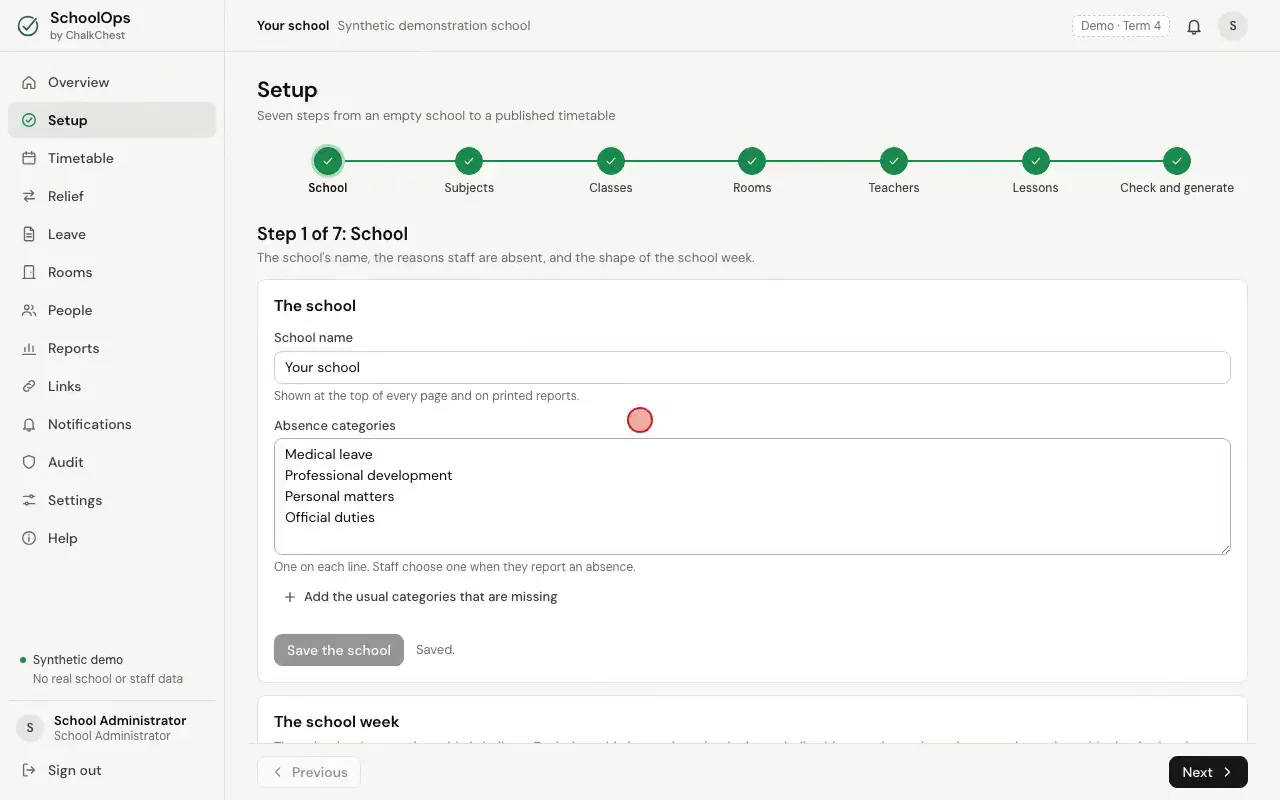
Moving from one step of Setup to the nextFictional demo data School. Type the school’s name and the reasons staff can choose when they report an absence, one on each line. A button under the box adds the usual reasons for you. Below are the school week, the cycle, the periods with their times, and the holidays. Choose Save the school and Save the calendar.
Step 1, SchoolFictional demo data Subjects. Each subject has a department and a Room type. The room type is what sends a subject to the right kind of room, such as science lessons to a science lab.
Step 2, Subjects, with the room type of each subjectFictional demo data Classes. Each class has its number of pupils and any periods when it is not available.
Step 3, ClassesFictional demo data Rooms. Each room has a type, a number of seats and its equipment. Keep this list up to date as rooms change.
Step 4, RoomsFictional demo data Teachers. Each teacher has a department, the most periods they may be given in a week and the most relief periods in a week.
Step 5, TeachersFictional demo data Lessons. A lesson says who teaches which subject to which class, how many times a week and in which rooms. The bars at the top show how full each class’s week is.
Step 6, LessonsFictional demo data In any of these steps, Import a file loads many records at once. Take the sample file offered there, fill it in with a spreadsheet, then choose Choose a file. The file is checked first, and nothing is saved if any row is wrong.
The Import a file window for subjectsFictional demo data Check and generate. Check again looks for lessons that could never be placed, teachers over their weekly cap and classes with more periods than their week holds. When it finds no problems, the school is ready for its timetable.
Step 7, Check and generate, with no problems foundFictional demo data