SchoolOps by ChalkChest · For the relief coordinator
Managing rooms from the phone
See which rooms are free, look after bookings, block a room and change a lesson’s room for one day.
The pictures and clips show the real product with a made-up school, staff and classes. Fictional demo data.
On the phone
This is for coordinators and administrators. Every member of staff can see free rooms and book one; see the guide on booking a room.
What is free and what is booked
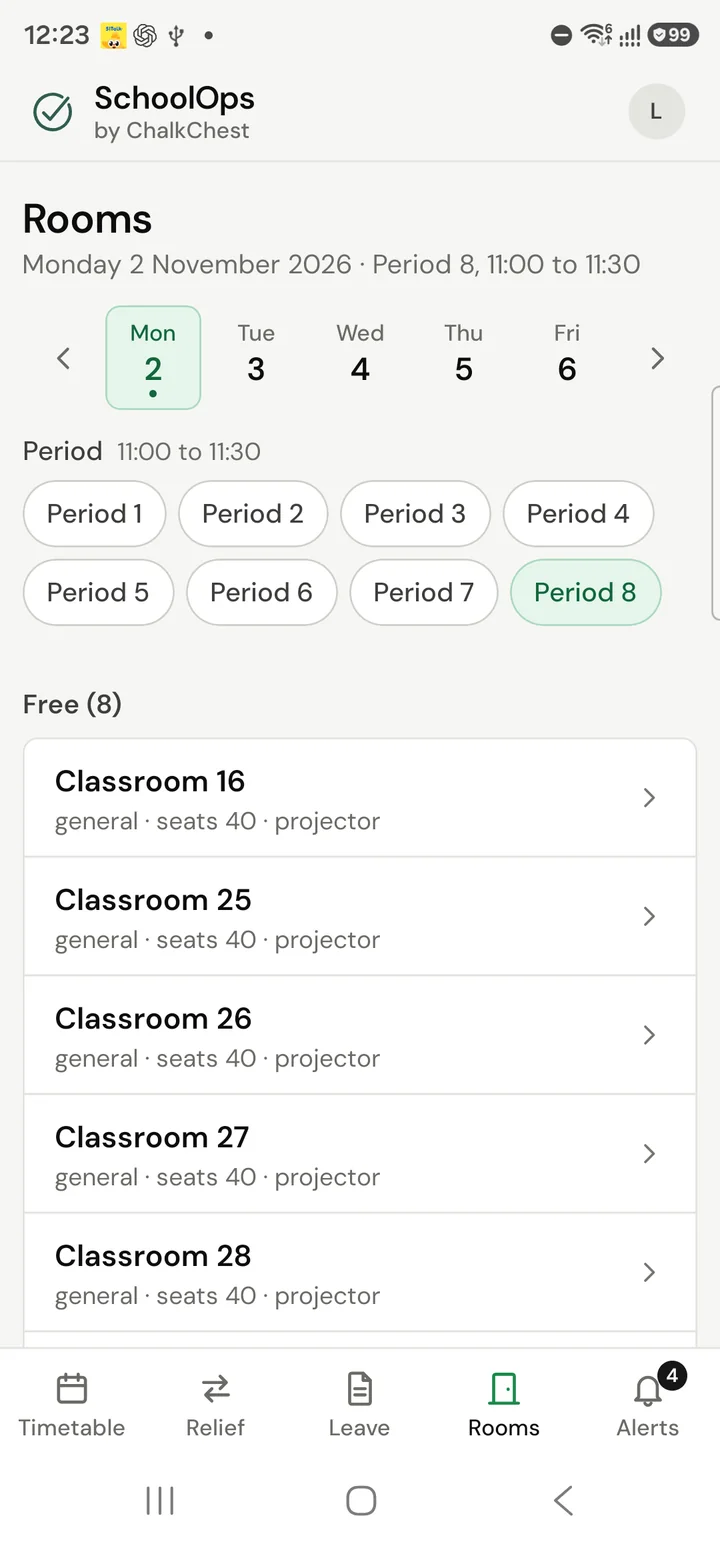
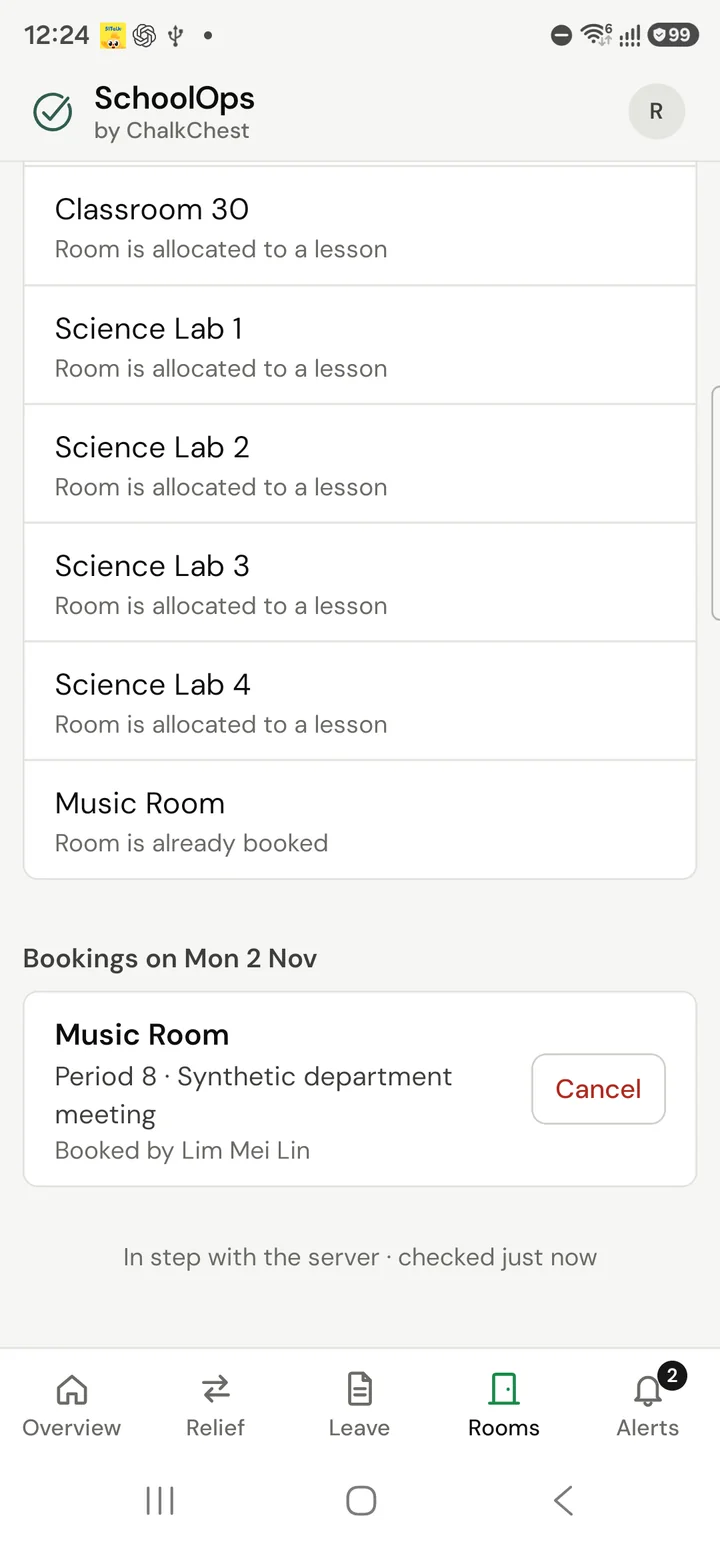
Tap the Rooms tab, then the day and the period. Free rooms are listed first. Below them are the rooms in use, each with the reason, and the day’s bookings.
You can Cancel any booking, not only your own.
Blocking a room
Use this when a room cannot be used, for example for repairs.
On the Rooms tab, tap Block a room.
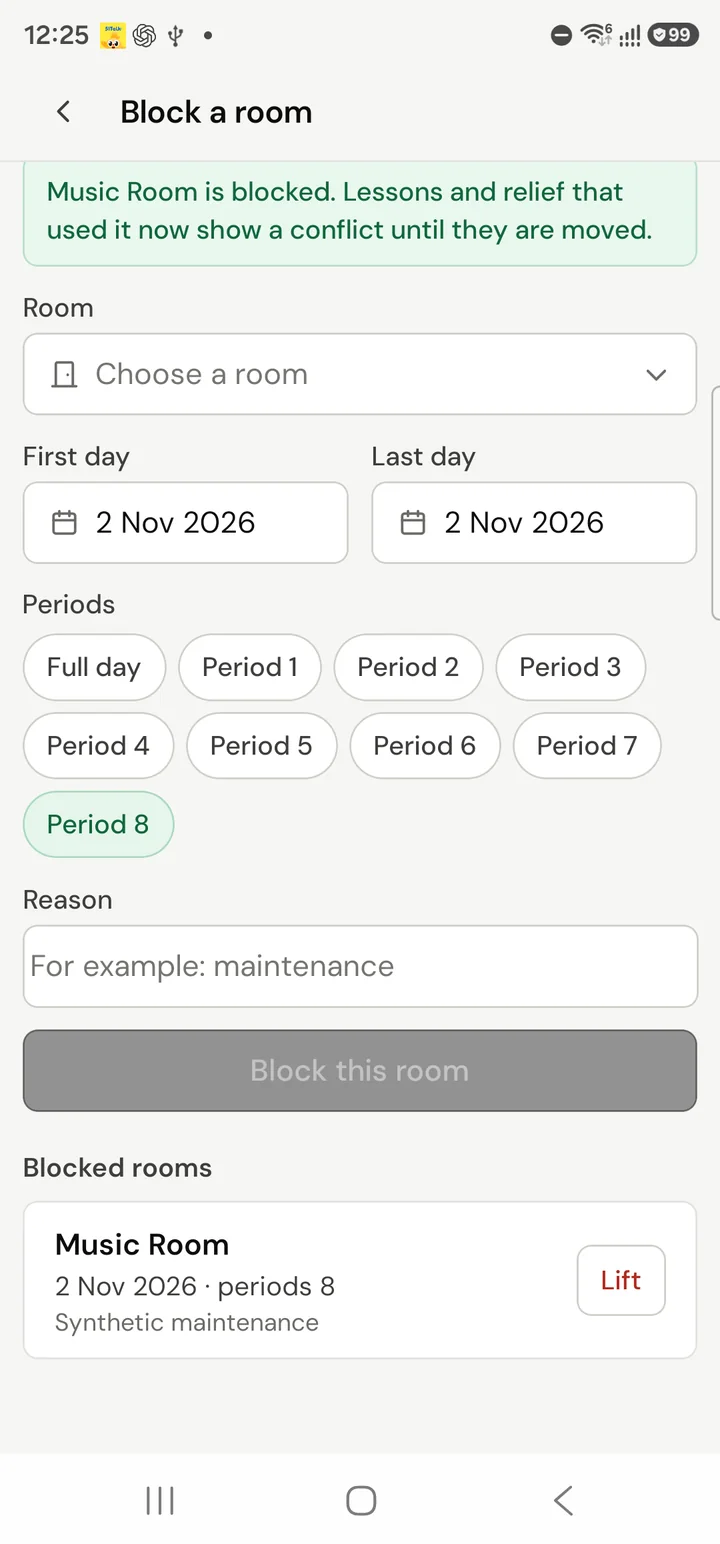
Choose the Room, the First day and Last day, and Full day or the periods.
Type the Reason and tap Block this room.
Lessons and relief that used the room now show a conflict until they are moved. The room is listed under Blocked rooms. Tap Lift to make it usable again.
Changing a lesson’s room for one day
On the Rooms tab, tap Change a lesson’s venue, and choose the lesson. You can also tap Change venue on a relief lesson.
Choose the new room from the list. Each room shows its type, its seats and whether it is free.
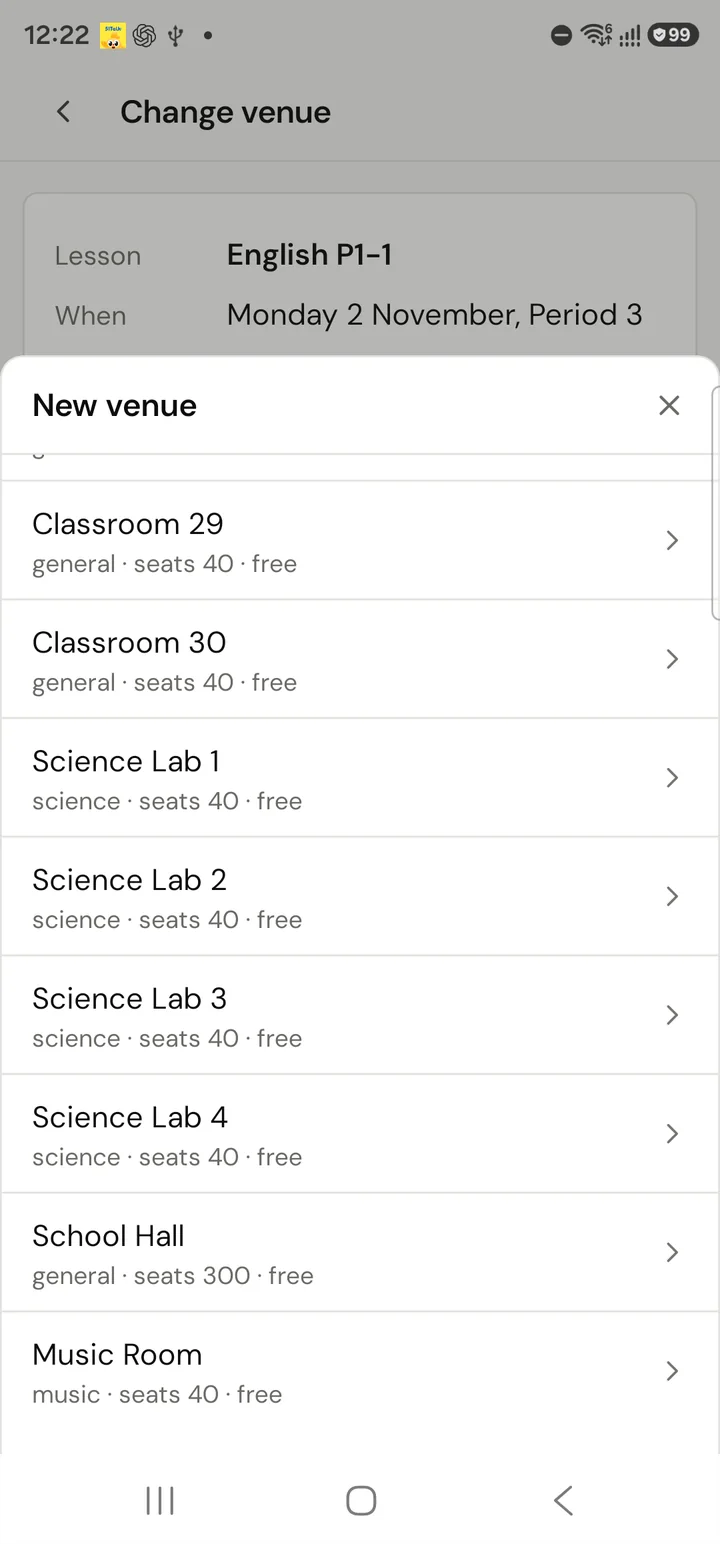
The list of rooms to move a lesson to, each with its type, seats and whether it is freeFictional demo data Tap Validate and change venue. The change is checked first: the room must suit the subject, be large enough and be free.
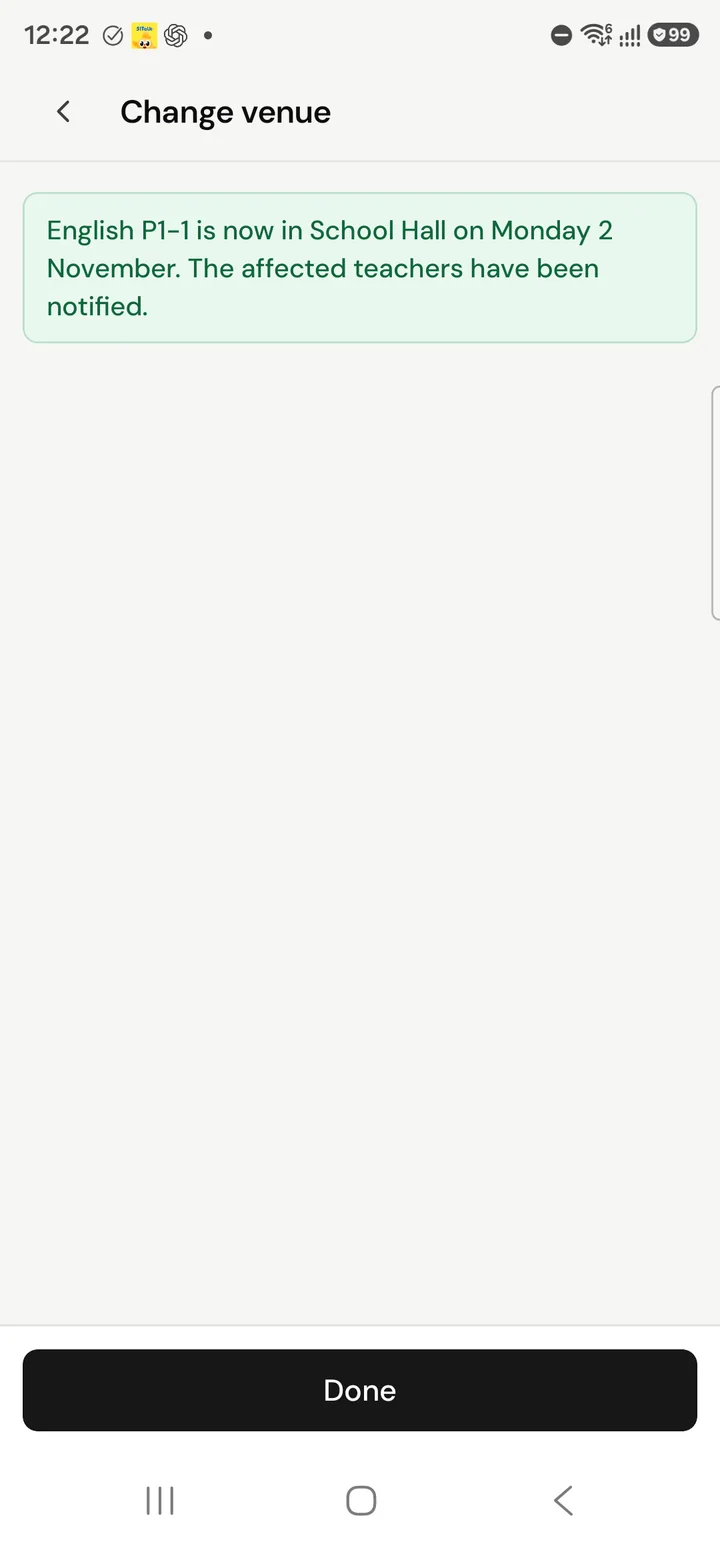
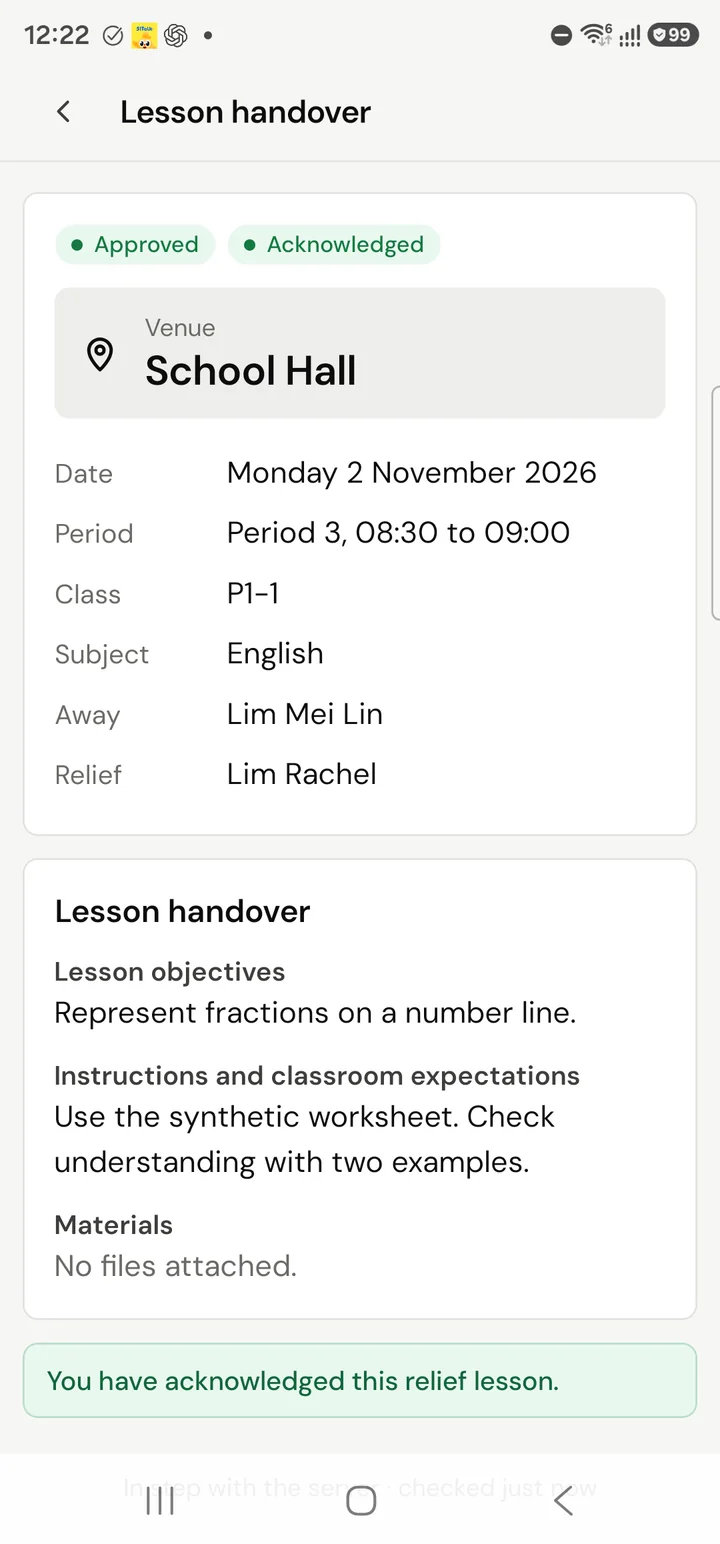
The confirmation that English for P1-1 is now in the School Hall on that day and the affected teachers have been notifiedFictional demo data
The lesson’s teacher, and the relief teacher if there is one, are told at once. The new room shows on their lesson.